¶ TOOCAA Studio Overview of Features
TOOCAA Studio is a multifunctional online editing tool launched by TOOCAA, compatible with Windows and macOS systems. It integrates an intuitive design interface, powerful editing capabilities, and efficient laser control, providing creators with full-process support from concept inspiration to precise manufacturing. TOOCAA Studio supports preset processing parameters for various materials and offers real-time preview, path optimization, intelligent camera calibration, and rotary attachment support. Deeply integrated with TOOCAA L2 and its accessories, it delivers a smooth creative experience, making it easy for both individual designers and professional users to operate.
TOOCAA Studio link: https://toocaastudio.com/
¶ Menu Bar
¶ Function Description
¶ File
- New: Create a new file
- Open: Open a file
- Import: Import jpg, png, dxf, svg files
- Save: Save file
- Save as SVG: Save the project as an SVG file
- Save as GCode file: Save the project as a GCode file
¶ Edit
- Undo: Undo the last action
- Redo: Redo the last undone action
- Copy: Copy selected objects
- Paste: Paste copied objects
- Delete: Delete selected objects on the canvas
- Select All: Select all objects on the canvas
¶ Tools
- Select: Click to select objects or options
- Move: Click to drag the canvas
- Pen: Click to draw vectors
- Rectangle: Click to draw a rectangle
- Circle: Click to draw a circle
- Text: Click to enter text
¶ Help
- Getting Started Guide: Open TOOCAA knowledge base
- Tutorials: Open TOOCAA Studio tutorials
- Common Parameter Settings: Open the common parameter library
¶ Settings
- General: Switch speed units, grid lines, and auto-snapping on/off
- Language: Select English, Chinese, German, French, Portuguese, Spanish, Czech, Dutch, Japanese, Thai, etc.
- Shortcuts: View TOOCAA Studio keyboard shortcuts
- About TOOCAA Studio: View version information and updates
¶ Menu Bar UI Example

¶ Status Bar
¶ Function Description
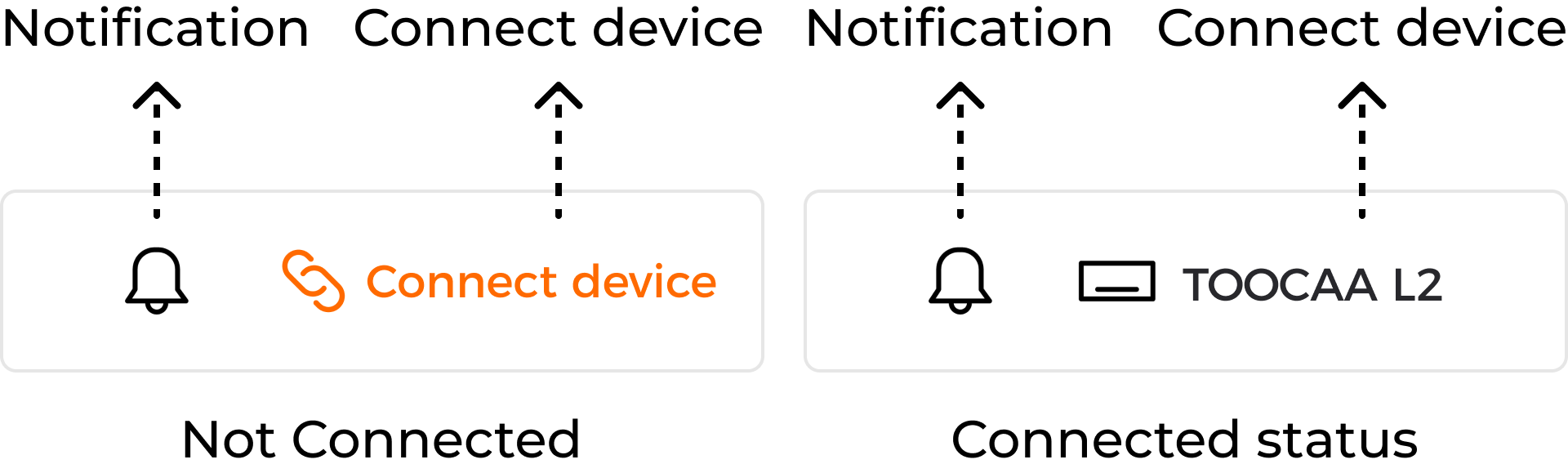
¶ Notifications
- Notifications: Click to view notificationsStatus Bar UI Example
¶ Toolbar
¶ Function Description
- Position: Adjust element X and Y position on the canvas (default coordinate is the top-left corner of the bounding box)
- Size: Adjust element width and height
- Corner Radius: Add rounded corners (currently only for rectangles)
- Aspect Lock: Lock element proportions
- Align Left: Align selected objects to the left edge
- Align Horizontal Center: Align horizontally centered
- Align Right: Align selected objects to the right edge
- Align Top: Align selected objects to the top
- Align Vertical Center: Align vertically centered
- Align Bottom: Align selected objects to the bottom
- Align Center: Align objects to the center
- Union: Merge shapes into one and remove overlapping internal edges
- Intersect: Keep only overlapping regions of multiple shapes
- A-B Subtract: Subtract second selected shape from first
- B-A Subtract: Subtract first selected shape from second
- Group: Combine multiple objects into one group
- Ungroup: Separate grouped objects
- AI Image Generation: Generate new images based on existing ones for style transfer or creative expansion
- Image Editing: Basic image processing such as cropping, filters, and erasing
- Image Tracing: Convert bitmap images into vector paths for engraving or cutting
- Rectangular Array: Duplicate elements in rows and columns to form a grid
- Circular Array: Duplicate elements around a center point in a circular pattern
- Outline: Generate inner and outer contour paths for cutting or outlining
¶ Toolbar UI Example

¶ Left Sidebar
¶ Function Description
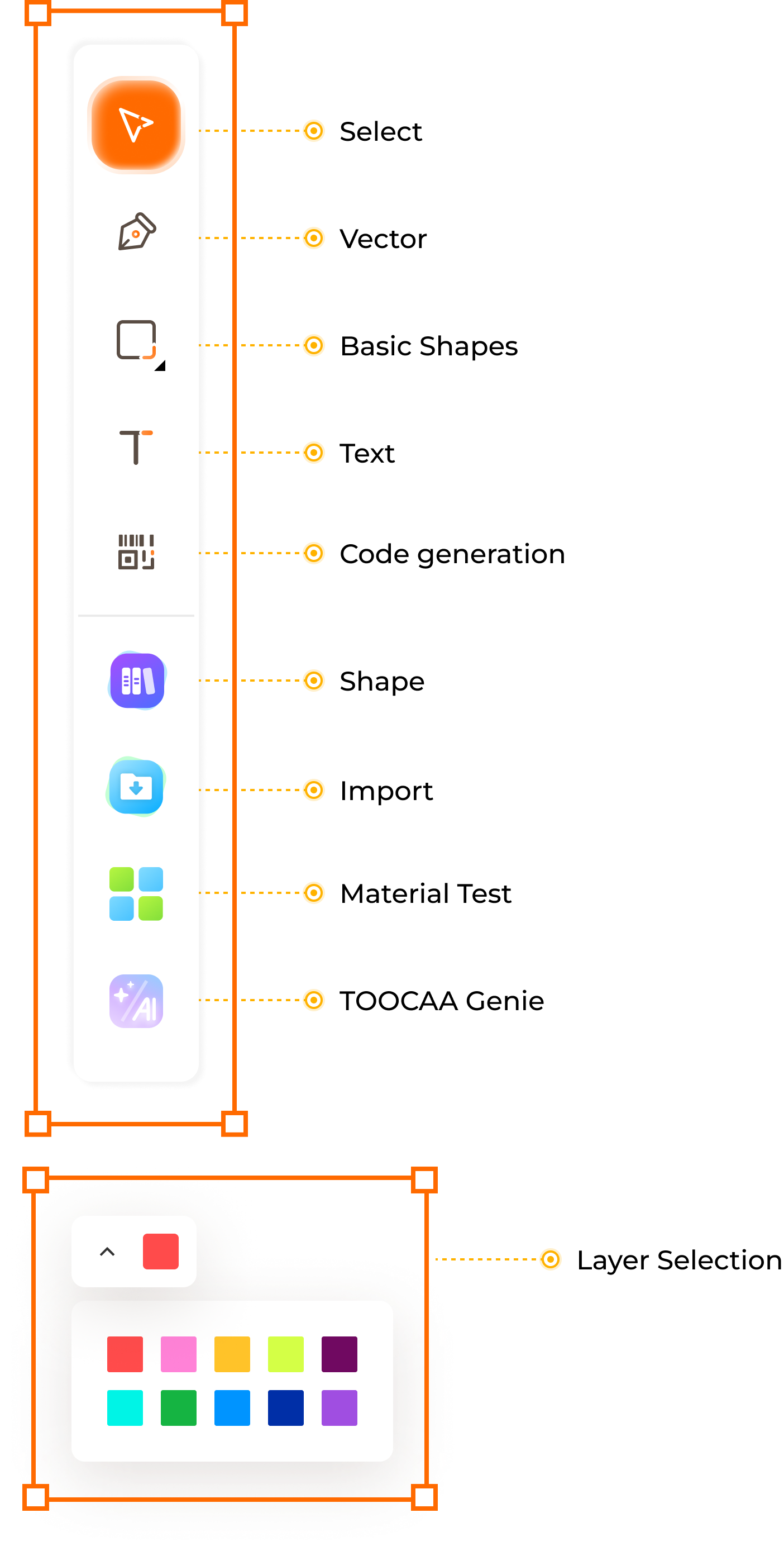
- Select: Click to select objects or materials
- Vector: Click to draw vectors
- Rectangle: Click to draw rectangles
- Circle: Click to draw circles
- Polygon: Click to select shapes
- Text: Click to input text
- Barcode Generator: Open barcode generation popup
- Asset Library: Hover to select assets
- Import: Import assets (PNG, JPG, SVG, DXF supported)
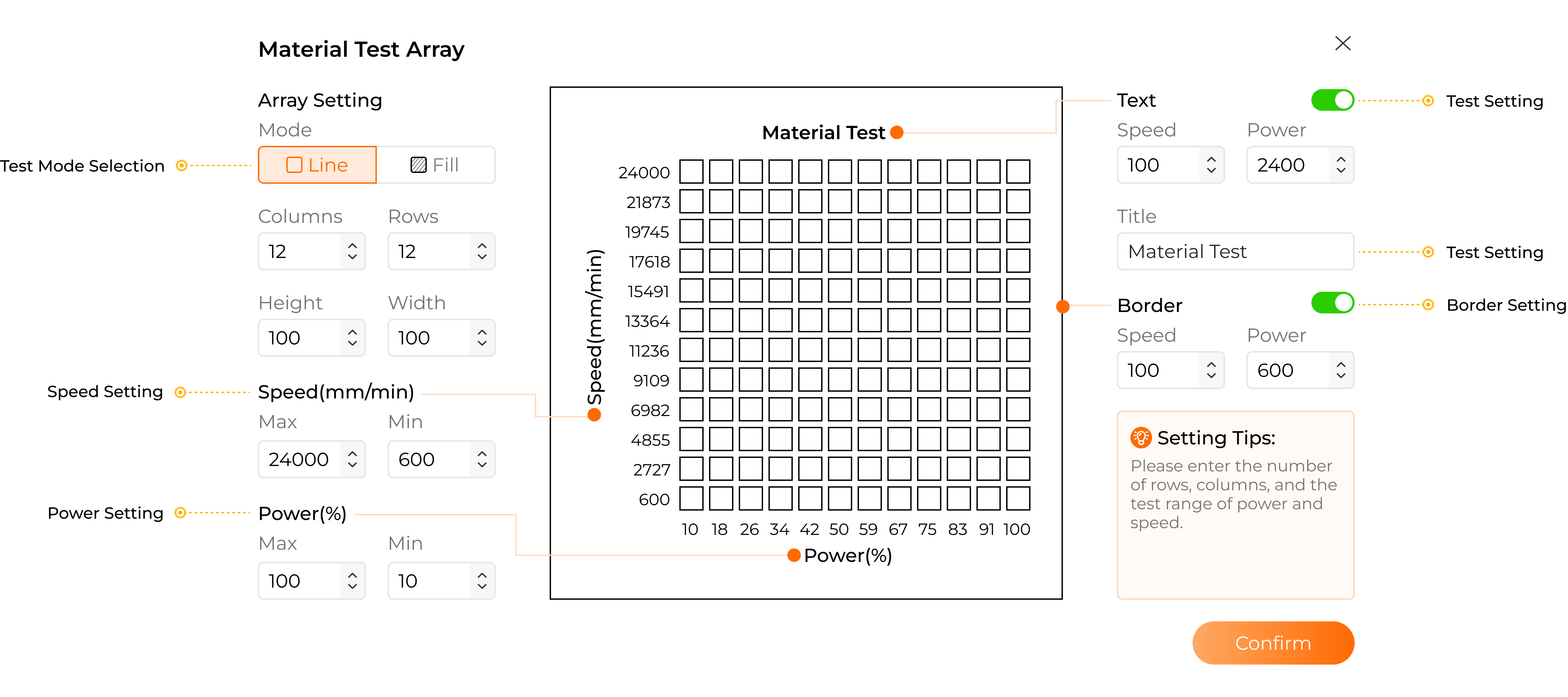
- Material Test Matrix: Open material test matrix window
- TOOCAA Genie: Open AI image generation window
- Layer Selection: Select layers
¶ Left Sidebar UI Example
¶ Right Settings Panel
¶ Function Description
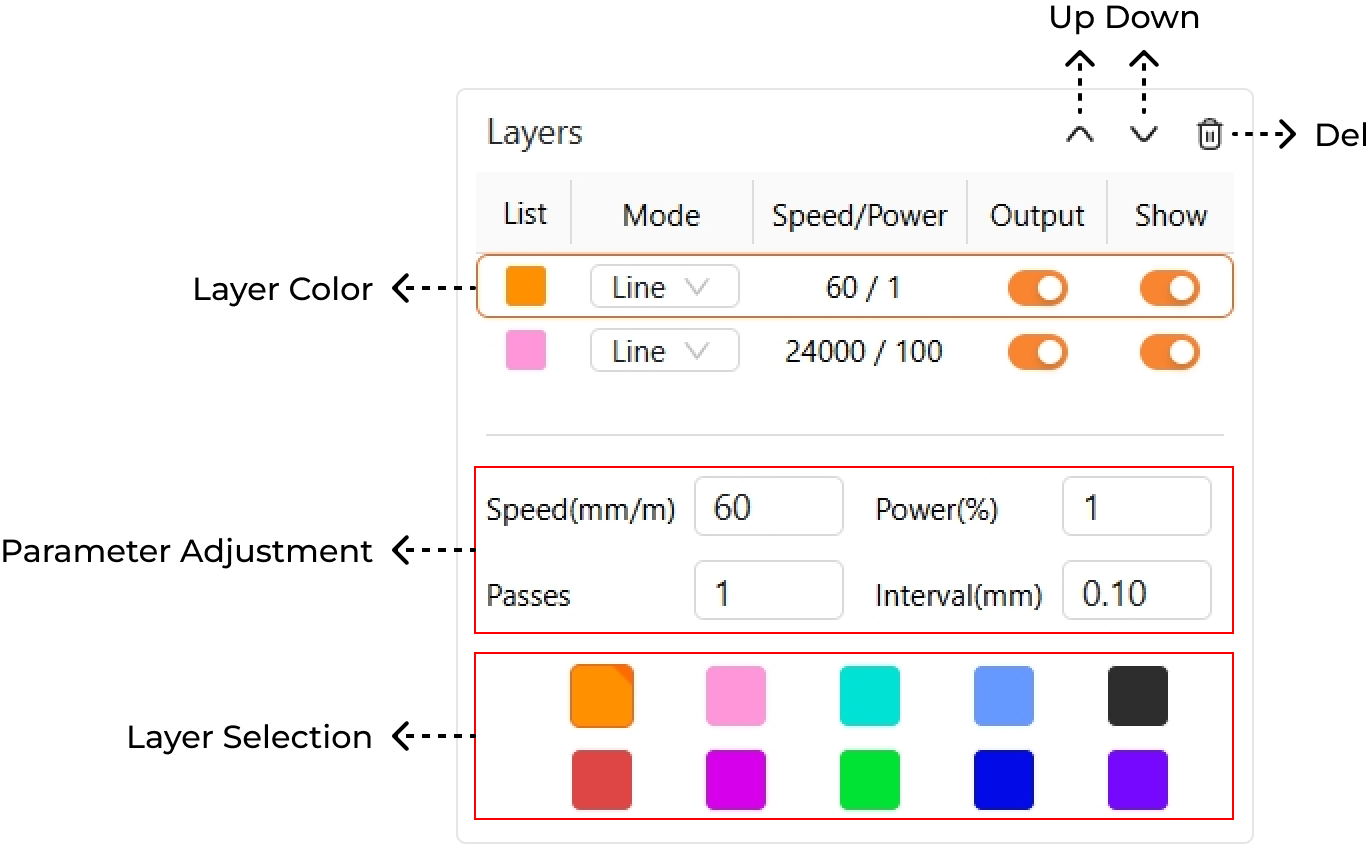
- Layer Grouping/Switching: Switch or adjust layers for elements or images
- Mode Selection: Line cut, line engraving, fill engraving
- Parameter Adjustment: Adjust speed, power, passes, and spacing per layer
- Layer Output/Disable Output: Enable or disable layer output
Layer processing priority: layer order > object creation order within layer
¶ Right Panel UI Example
¶ Canvas Panel
¶ Function Description
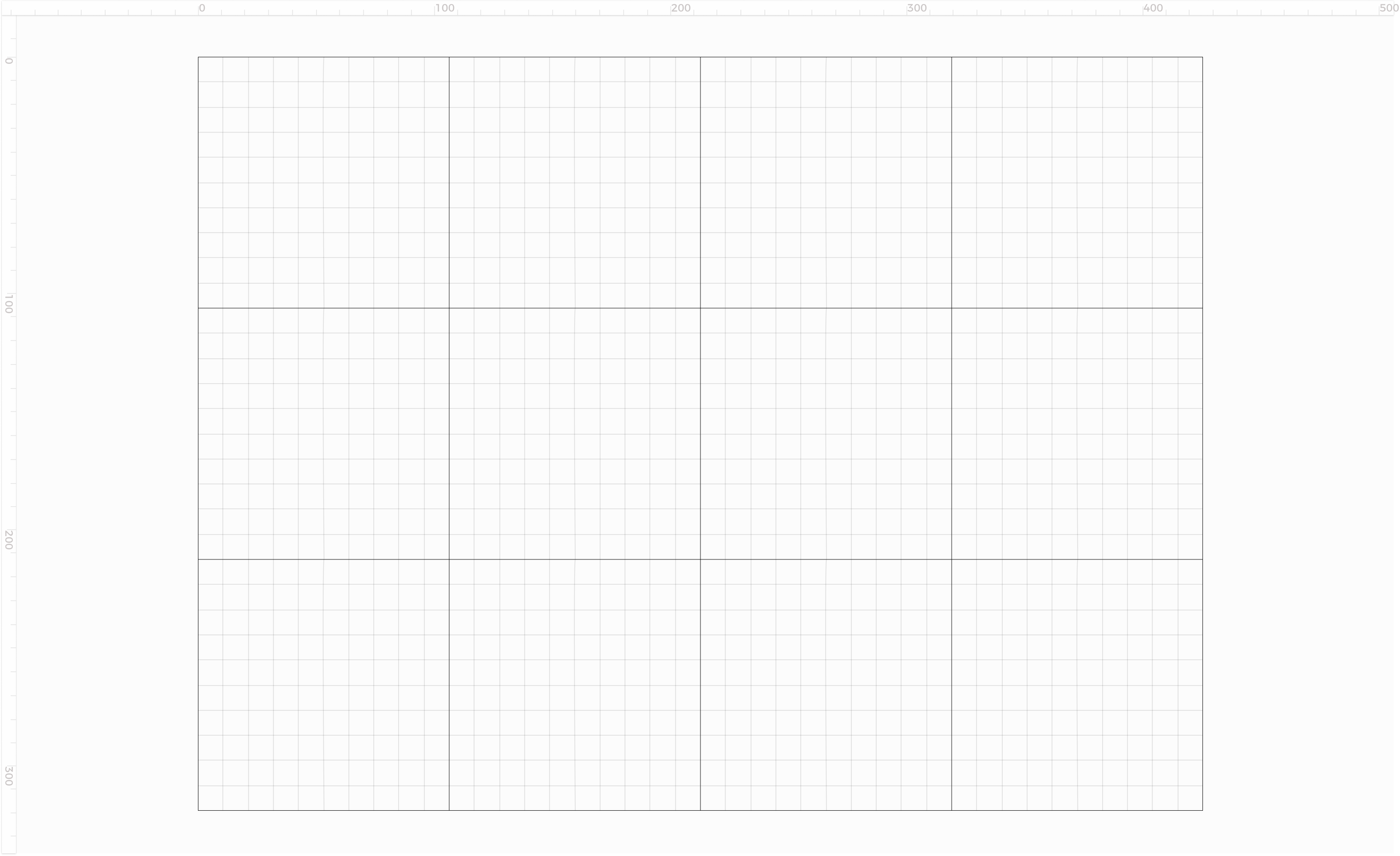
- Canvas Size: The canvas size depends on the selected machine. If TOOCAA L2 is selected, the processing area is 415mm × 395mm; if TOOCAA NOVA is selected, the processing area is 297mm × 210mm
¶ Canvas Panel UI Example
¶ TOOCAA NOVA Processing Components
¶ Function Description
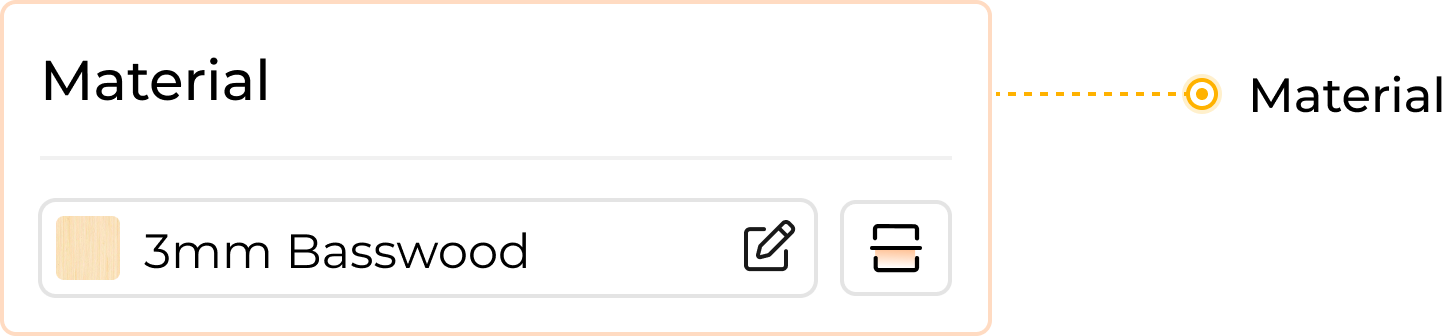
- Material Selection & Recognition: Manually select materials or use camera-based QR code recognition to obtain optimal processing parameters
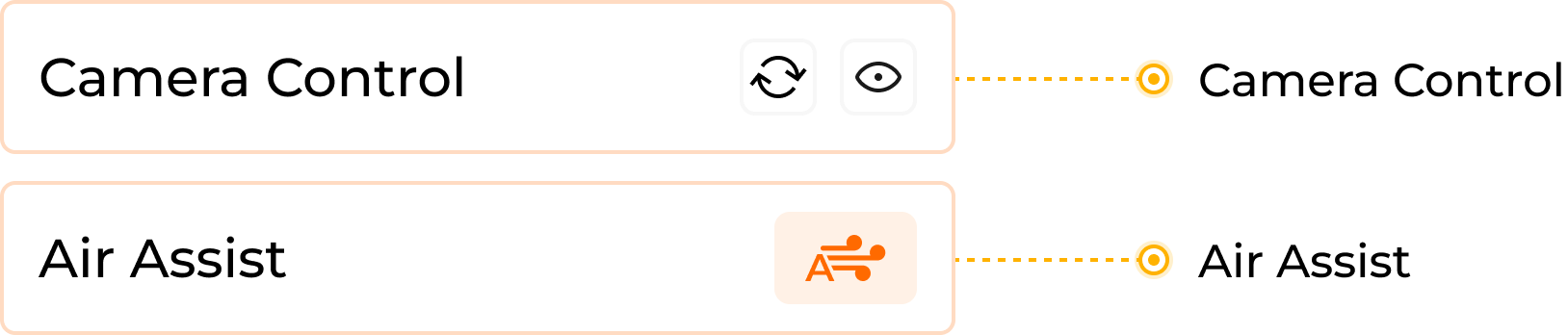
- Camera Control: Camera is enabled; you can refresh or hide the view
- Smart Air Pump Control: Air pump automatically adjusts airflow based on mode and parameters
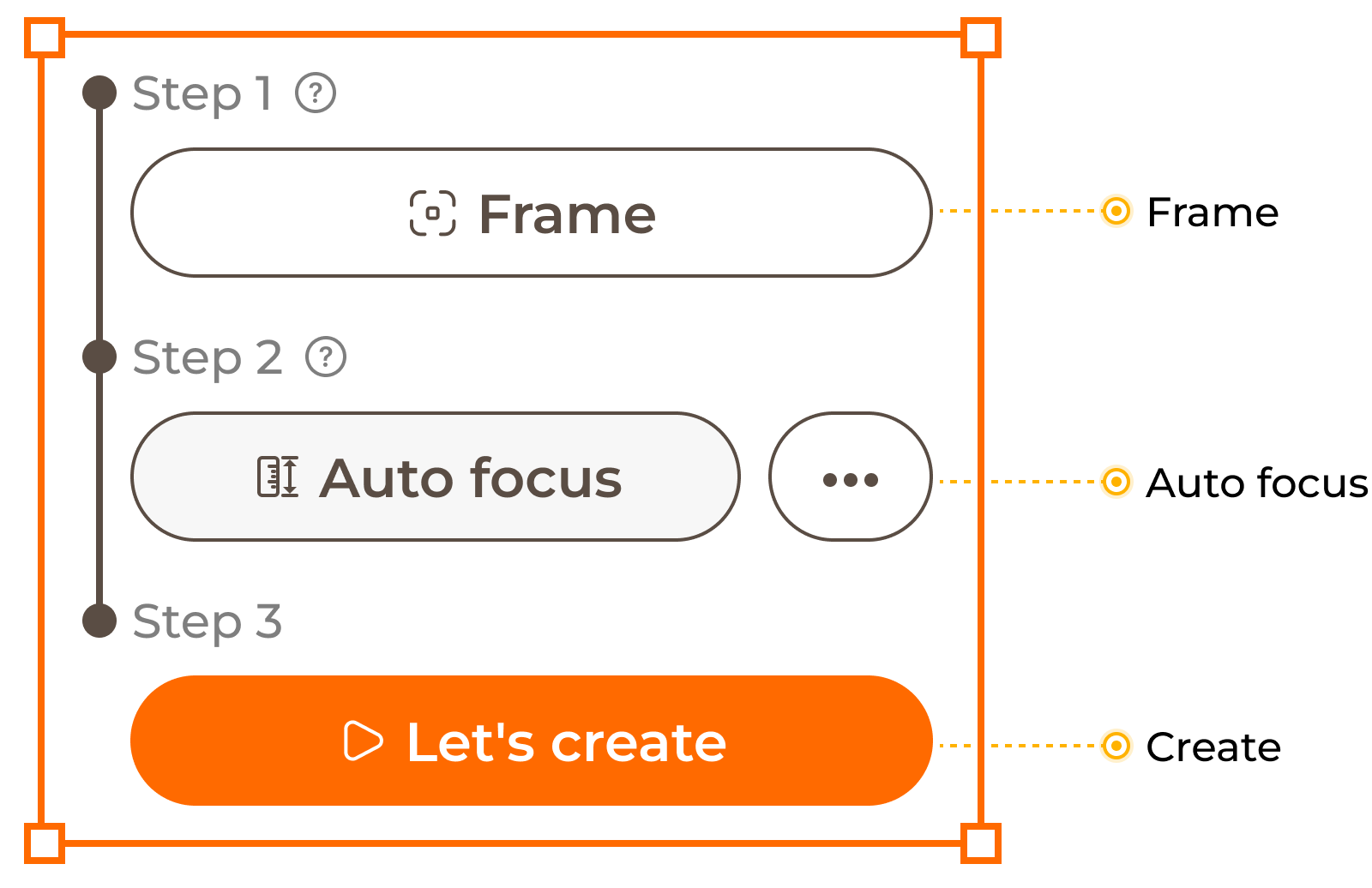
- Frame Outline: Maps design boundaries to the processing area to ensure correct alignment
- Auto Focus: Laser module Z-axis moves down to automatically determine optimal focus distance
- Processing: Starts engraving/cutting based on canvas content and position
¶ TOOCAA NOVA Processing Components UI Example