¶ TOOCAA NOVA Frequently Asked Questions (FAQ)
When using TOOCAA NOVA, you may encounter some common issues. Below are the solutions to help you quickly troubleshoot and resolve these problems.
¶ Q1. Obvious burn marks around the edges of the engraving or cutting pattern, or abnormal burn marks in one or multiple directions
¶ Solution:
- Check if the engraving parameters are too high and try lowering the power to reduce the burn marks.
- The air pump may not be working properly. Check if the air pump is running, if air is blowing out, and if the air pipe is clogged or bent.
¶ Q2. Machine prompts "No material detected" after focusing
¶ Solution:
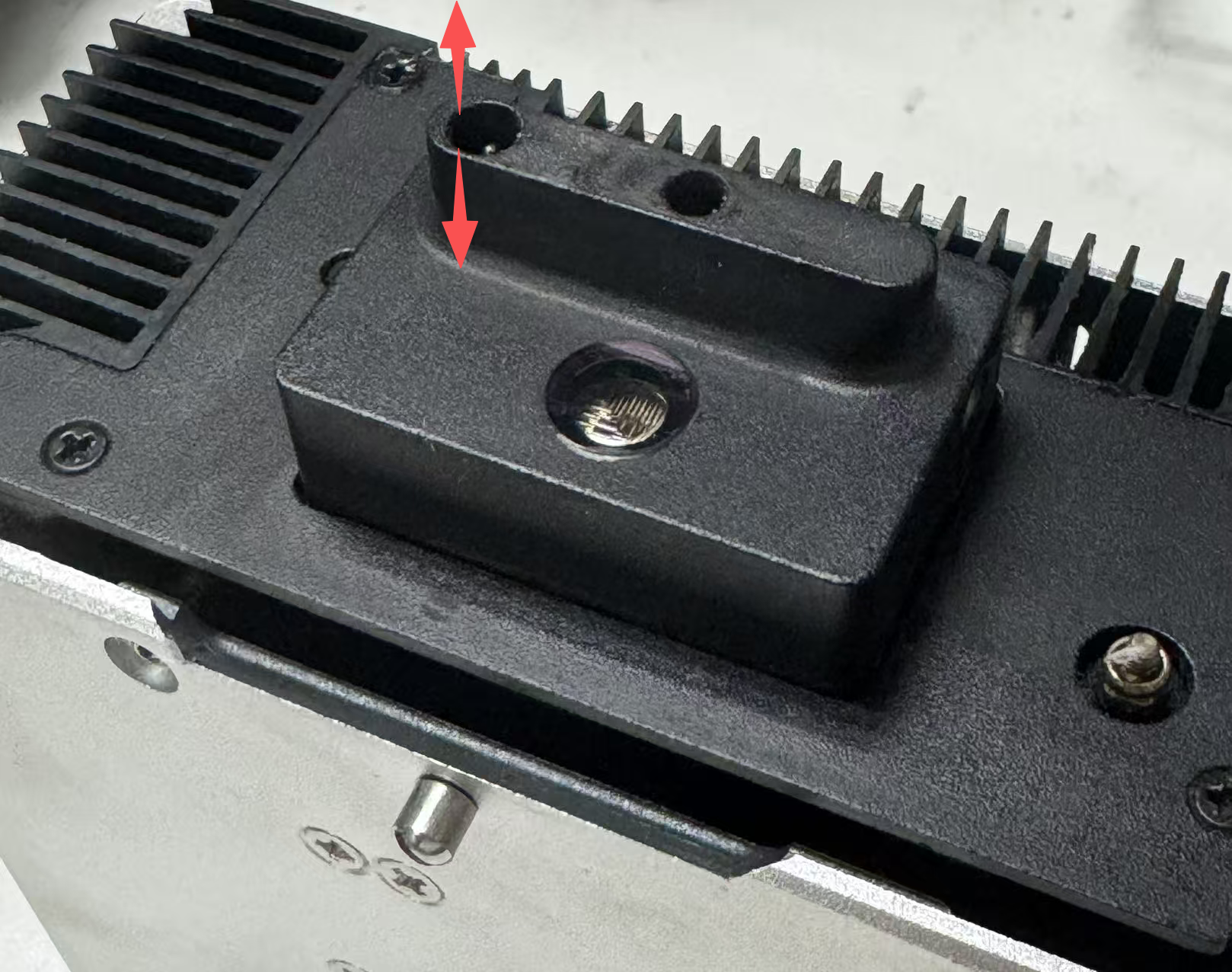
- The laser module probe might be stuck or clogged. Remove the laser module, press the probe repeatedly, then reassemble and test.
¶ Q3. Significant deviation between the engraved pattern and the actual pattern
¶ Solution:
- Recalibrate the machine. Pay attention to the following:
- Avoid placing the machine in overly bright environments to prevent the camera from overexposing.
- Ensure you place the kraft paper into the working area before powering on and do not open the lid before or after calibration.
- Use kraft paper without thickness for calibration.
¶ Q4. Machine prompts that one or more marker points are covered
¶ Solution:
- Ensure that no dirt or foreign objects are covering the marker points.
- Avoid placing the machine in overly bright environments or allowing light/sunlight to directly hit the marker points.
- Do not move the laser module as it may block the camera's view.
.png)
¶ Q5. Screen malfunction or unresponsiveness
¶ Solution:
- Click "Restore Factory Settings" in the settings menu, then restart the machine.
- Ensure the firmware is updated to the latest version.

¶ Q6. Restore factory settings not working or ineffective
¶ Solution:
- After restoring factory settings, ensure the device has fully restarted for the changes to take effect.
¶ Q7. Machine fails to start or cannot complete initialization
¶ Solution:
- Ensure the machine's lid is closed, and check if the laser module and bottom cover are properly installed or correctly aligned.
- If no issues are found, turn off the machine, reinstall the parts, and try starting the machine again.
Tips:
Ensure that TOOCAA NOVA is connected to the same WiFi network as your computer, and promptly update the firmware after connection to avoid other issues.
¶ Q8. TOOCAA NOVA WiFi Connection Troubleshooting
When using TOOCAA NOVA, you may encounter the following WiFi connection issues:
- The device is connected to WiFi and shows an IP address, but entering that IP address in TOOCAA Studio does not work.
- The device is connected to WiFi but does not show an IP address.
- The device cannot connect to WiFi.
¶ Solution
¶ 1. Change WiFi Network or Use Mobile Hotspot
Ensure that the WiFi network meets the following requirements:
- WiFi name cannot contain special symbols or fonts.
- Do not use WiFi networks requiring secondary authentication.
- Mobile hotspots must use the 2.4 GHz frequency band.
¶ Setting up the hotspot frequency
Android phone:
Go to Hotspot Settings → Select Frequency → 2.4 GHz
iPhone:
Go to Personal Hotspot Settings → Enable "Maximum Compatibility"
¶ 2. Use USB Connection Method
You can transfer WiFi information from your computer to the device using TOOCAA Studio's USB connection method.
¶ Steps:
- Open TOOCAA Studio.
- Click Connect via WiFi.
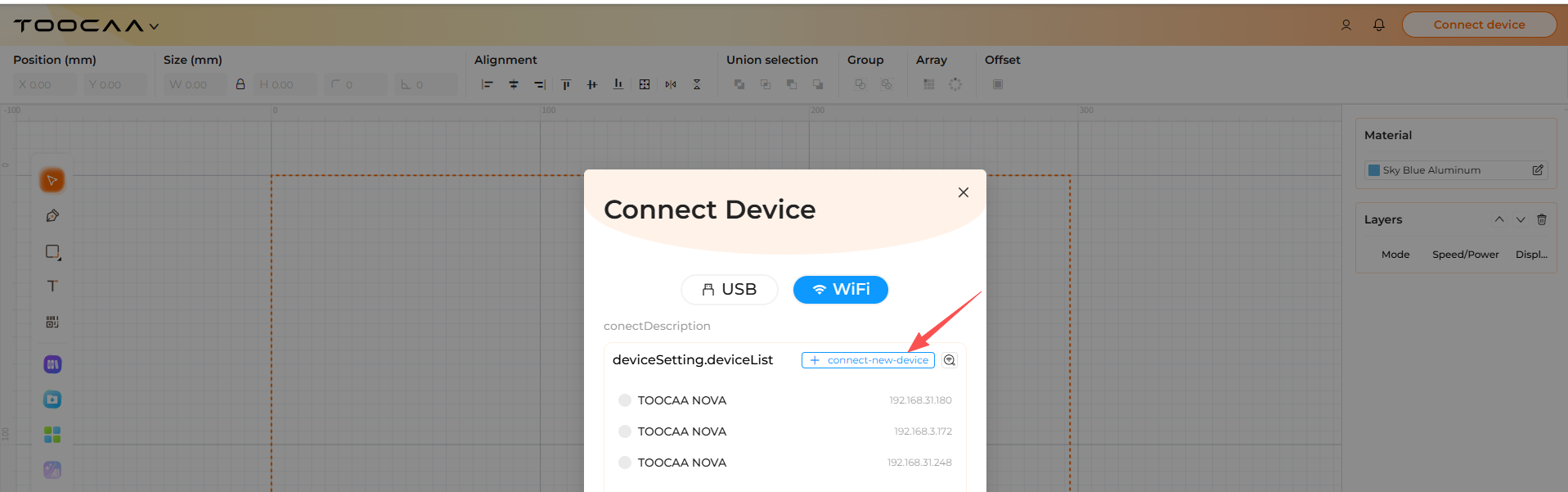
- Select USB Connection.
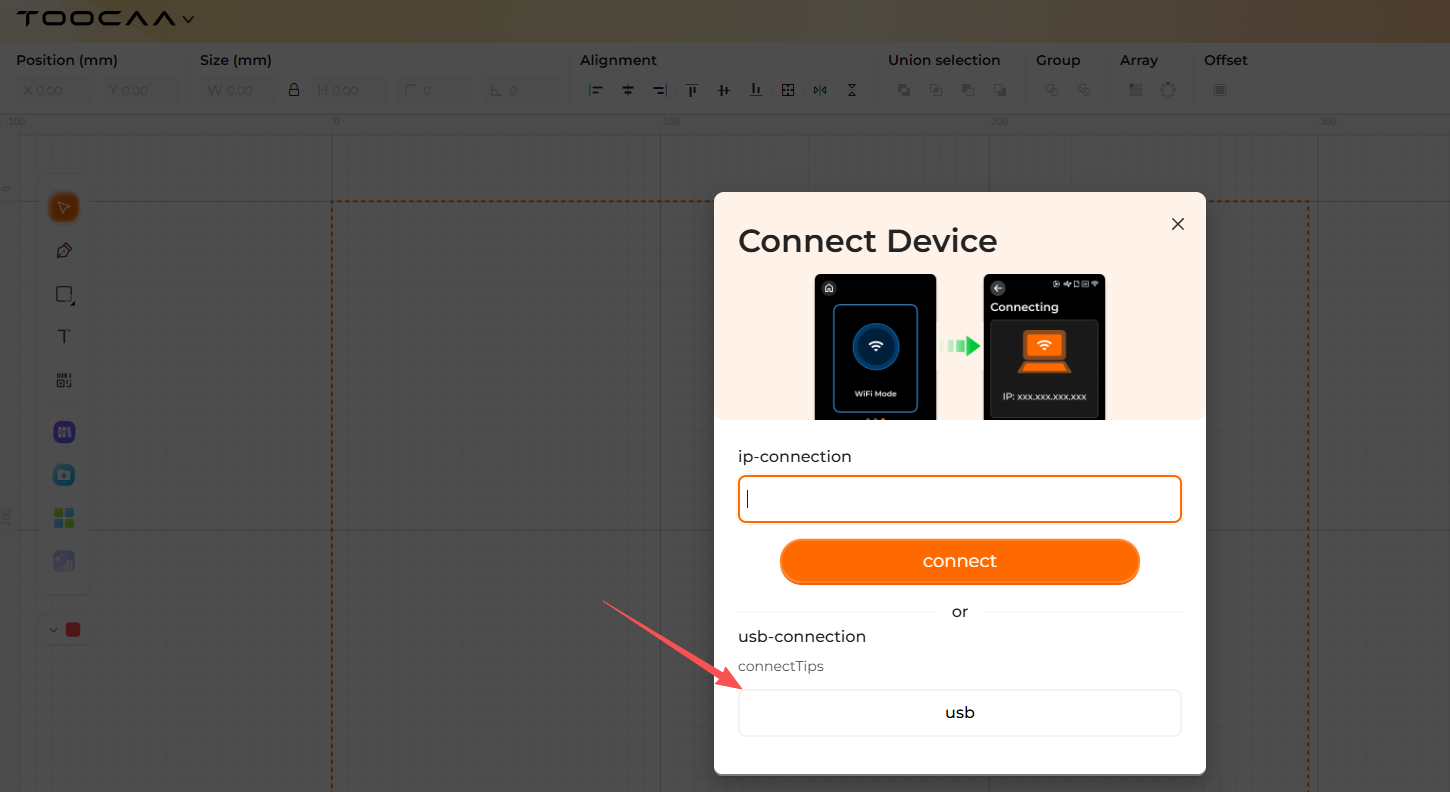
- Enter the WiFi name (SSID) and password of the current network on your computer.
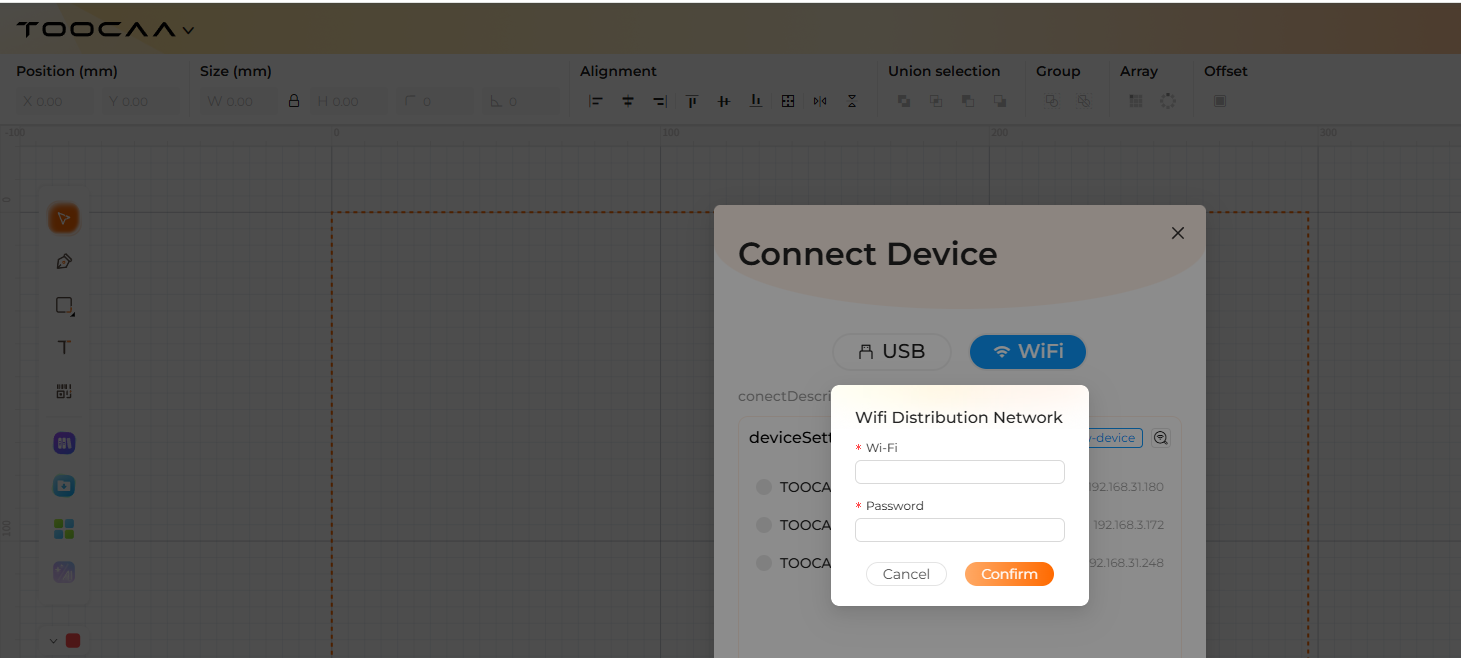
The WiFi information will be transferred to the device, allowing it to connect to the network.
¶ 3. Restore Factory Settings
If the above methods do not resolve the issue, please restore the device to factory settings and try connecting again.
Tips:
Ensure that TOOCAA NOVA is connected to the same WiFi network as your computer, and promptly update the firmware after connection to avoid other issues.
¶ Q9. TOOCAA NOVA Laser Lens Replacement Guide
¶ Before You Start
Before replacing the laser lens, turn off the machine and make sure it has completely stopped operating.
To avoid contaminating the lens surface, it is recommended to wear clean gloves or avoid touching the transparent area of the lens directly.
¶ Replacement Steps
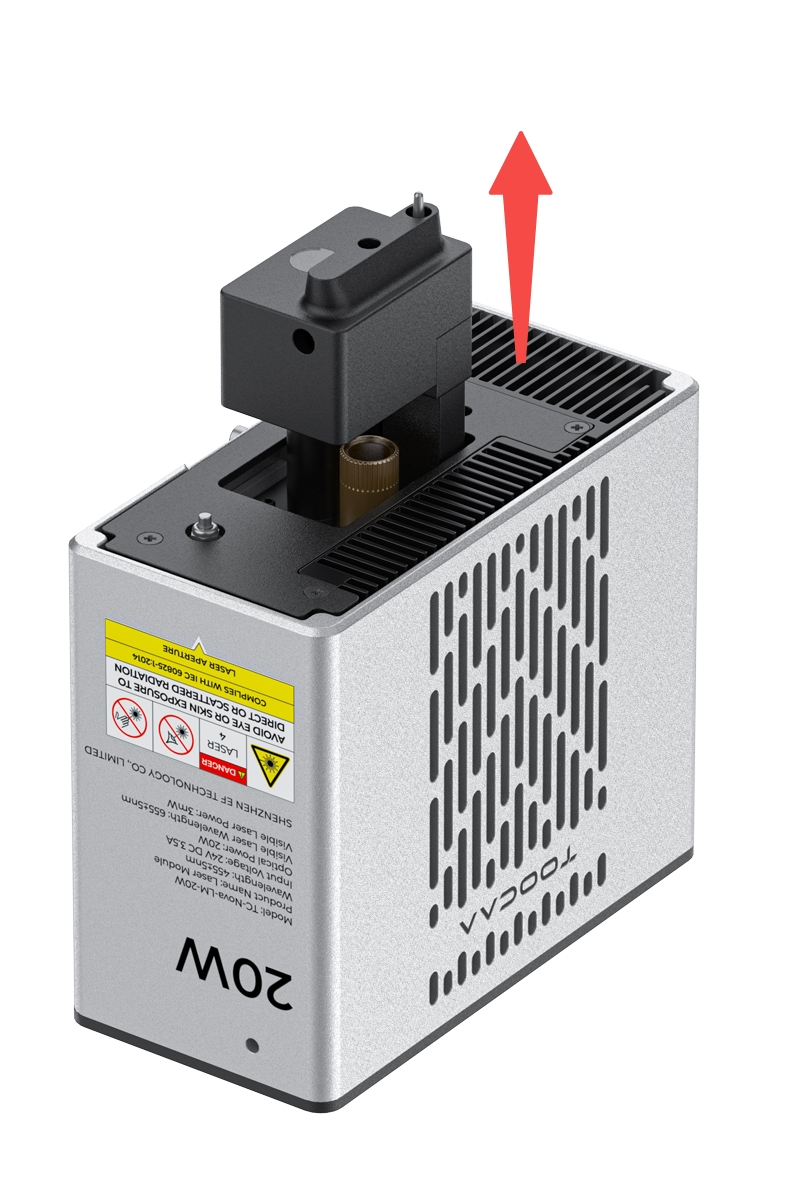
¶ 1. Remove the Focus Block
The black focus block on NOVA features a quick-release design. Hold the focus block and gently pull it upward to remove it from the machine.
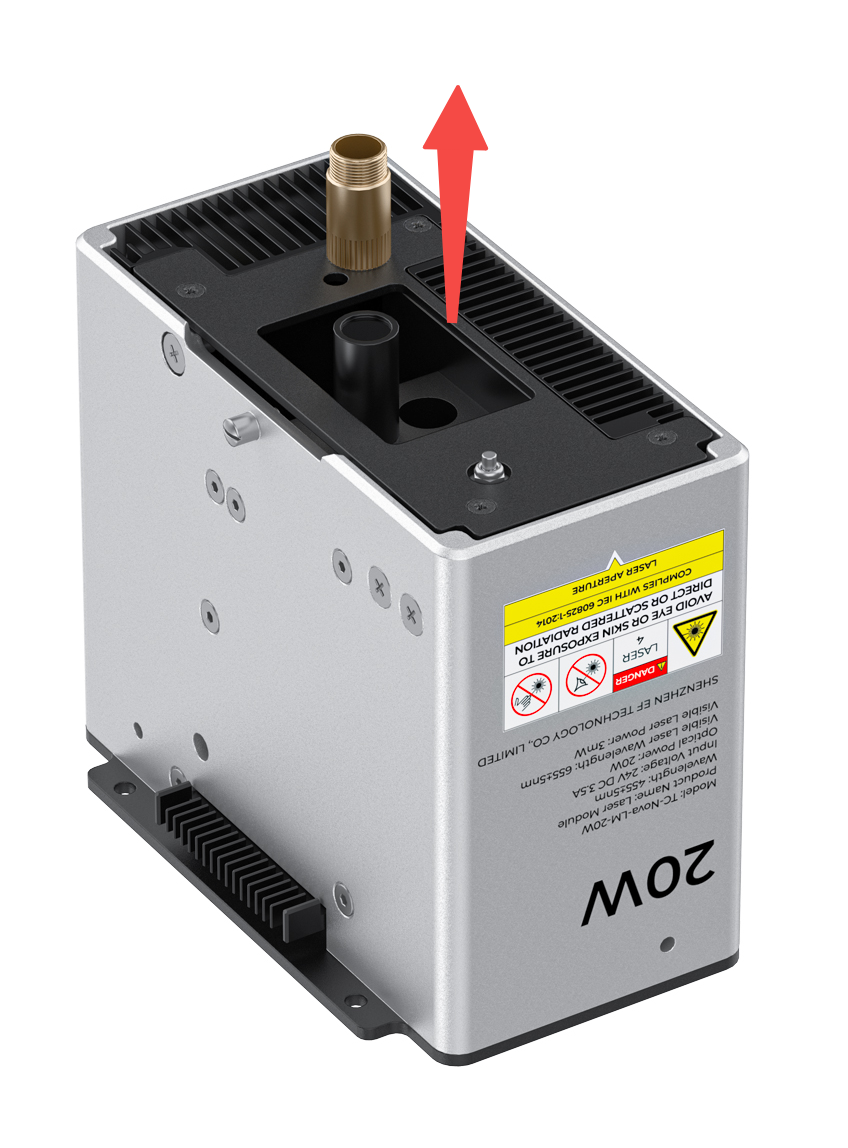
¶ 2. Remove the Old Laser Lens
Locate the laser lens installation position. Rotate the laser lens counterclockwise to unscrew it from the lens holder.
¶ 3. Install the New Laser Lens
Take out the new laser lens and install it into the lens holder by rotating it clockwise.
Make sure the laser lens is seated evenly during installation. Do not tilt the lens or overtighten it.
TOOCAA NOVA laser lens Purchase link
¶ 4. Reinstall the Focus Block
After replacing the laser lens, align the black focus block with its original position and press it downward to reinstall it.
Make sure the focus block is securely installed before using the machine again.
¶ Notes
Do not touch the surface of the laser lens directly with your fingers, as fingerprints or oil stains may affect laser performance.
Do not apply excessive force when installing the laser lens to avoid damaging the lens or the lens holder.
After replacement, check that the laser output area is clean. It is recommended to perform a low-power test to confirm that the machine is working properly.
¶ Q10. Firmware update failed
A firmware update failed whilst using TOOCAA Studio.
¶ Solution 1: Free up space on your computer’s C drive
- Sufficient disk space is required for loading camera images and performing firmware updates. If there is a severe shortage of space on the C drive, the software may malfunction, resulting in failed image updates and firmware updates.
- We recommend uninstalling software that is not frequently used and clearing the system cache to free up space on the C drive. We recommend ensuring that the C drive has at least 20 GB of free space to meet the requirements for loading camera images and performing firmware updates.
¶ Solution 2: Update the firmware using TOOCAA NOVA
If firmware updates consistently fail on the TOOCAA Studio, you can use TOOCAA NOVA to carry out the update, as this method is more reliable.
Steps:
(1)On the NOVA machine’s touchscreen home screen, swipe down from the top to bring up the drop-down menu;
(2)In the drop-down menu, when you see the message ‘New version V1.0.1 update available’, click ‘Check’;
(The specific version number is subject to what is displayed on the screen)
(3)Click the ‘Update’ button and wait for the process to complete.
Once the update is complete, the device will automatically restart, completing the firmware upgrade.
Tips:
If the firmware update fails, please first check that there is sufficient space on your computer’s C drive, then try updating using TOOCAA NOVA.
¶ Q11. The software freezes when engraving multiple designs in batches
When engraving multiple designs simultaneously (e.g. six designs), the software frequently freezes during the preview generation stage, and closing and restarting it several times does not resolve the issue. This is caused by the browser detecting that the running content is too large, and is related to the computer’s specifications and available RAM.
¶ Solution 1: Close any unnecessary web pages and background programmes
Before engraving, close any unnecessary browser tabs and any software running in the background to free up RAM before proceeding with batch engraving.
¶ Solution 2: Place the patterns on separate layers, then hide the layers and engrave them one by one
- When multiple designs are imported into TOOCAA Studio, they may be placed on the same layer by default. When engraving multiple complex designs on the same layer in batches, the browser may become overloaded, which can easily cause the software to freeze.
- If all designs are on the same layer, please select the target designs → right-click → Move to → Select a different coloured layer, to distribute the designs across different layers for easier identification.
3. Once you have organised the layers, in the TOOCAA Studio layer panel, click the ‘eye’ icon in front of any unnecessary layers to hide them, leaving only the design you wish to engrave. Engrave each layer in turn to prevent the software from freezing.
Tips:
Before engraving multiple complex designs in batches, it is advisable to hide the layers first, check that each individual design generates a preview correctly, and then proceed with the batch processing. This will effectively prevent the software from freezing.