About TOOCAA NOVA
TOOCAA NOVA is a compact desktop laser engraving system designed to make digital fabrication safer, smarter, and more accessible. It addresses the complexity and safety limitations of traditional open-frame engravers by integrating modular engineering, intelligent automation, and certified safety protection.
The interchangeable laser module supports 2W IR, 10W, and 20W options, allowing users to adapt to a wide range of materials while extending product lifespan and reducing material waste. The fully enclosed Class 1 safety housing integrates flame detection, tilt protection, and a child lock to ensure secure operation. A dual-channel intelligent airflow system helps maintain a clean working environment and stable processing precision.
Powered by TOOCAA Studio, the AI-assisted software automates image generation, material recognition, and parameter configuration, significantly lowering the learning curve for beginners. With multilingual UI support and cross-format compatibility, TOOCAA NOVA delivers a safe, intelligent, and sustainable solution for both personal and professional creators.
Technical Specifications
Machine Specifications
| Item | Specification |
|---|---|
| Machine Size | 513 × 402 × 180 mm |
| Work Area | 210 × 297 mm |
| Positioning Accuracy | 0.01 mm |
| Re-positioning Accuracy | 0.01 mm |
| Max Engraving Speed | 36,000 mm/min |
| Supported Interfaces | Emergency Stop, Expansion Port, Rotary |
| Housing Materials | ABS, PC, Aluminum Alloy |
| Safety Protection | Tilt Detection, Flame Detection, Laser Module Offline Detection, Air Assist Offline Detection, Lid Open Detection, Rotary Detection, Laser Module Overheating Detection, Laser Module Homing Failure Detection, Baseplate Detection, Child Lock, Emergency Stop |
| Net Weight | 10.05 kg |
| Gross Weight | 15.00 kg |
| Item | 10W |
| Laser Wavelength | 455 ± 5 nm |
| Output Power | 10W |
| Input Voltage | 24V |
| Spot Size | 0.08 × 0.13 mm |
| Laser Class | Class 1 |
| One-pass Cutting (Basswood) | 6 mm |
| Supported Materials | Basswood, Tung Wood, Pine, Plywood, Beech, Walnut, Bamboo, MDF, Lacquered Metal, Tinplate, Stainless Steel, Anodized Aluminum, Dark-colored Glass, Slate, Ceramics, Jade, Marble, Shale, Leather, Fabrics, Canvas, Corrugated Cardboard, Cardboard, Plastics, Dark-colored Acrylic (except blue) |
| Supported Software | TOOCAA Studio, LightBurn |
| Supported OS | Windows, macOS |
| Connectivity | USB Type-C, Wi-Fi, Bluetooth |
| Item | 10W |
| Input | AC 100–240V, 50/60Hz, 2.5A |
| Output | 24V 5A |
| Certifications | IEC 60825-1 Class 1, CE RED, CE MD, RoHS, FCC SDoC, FDA |
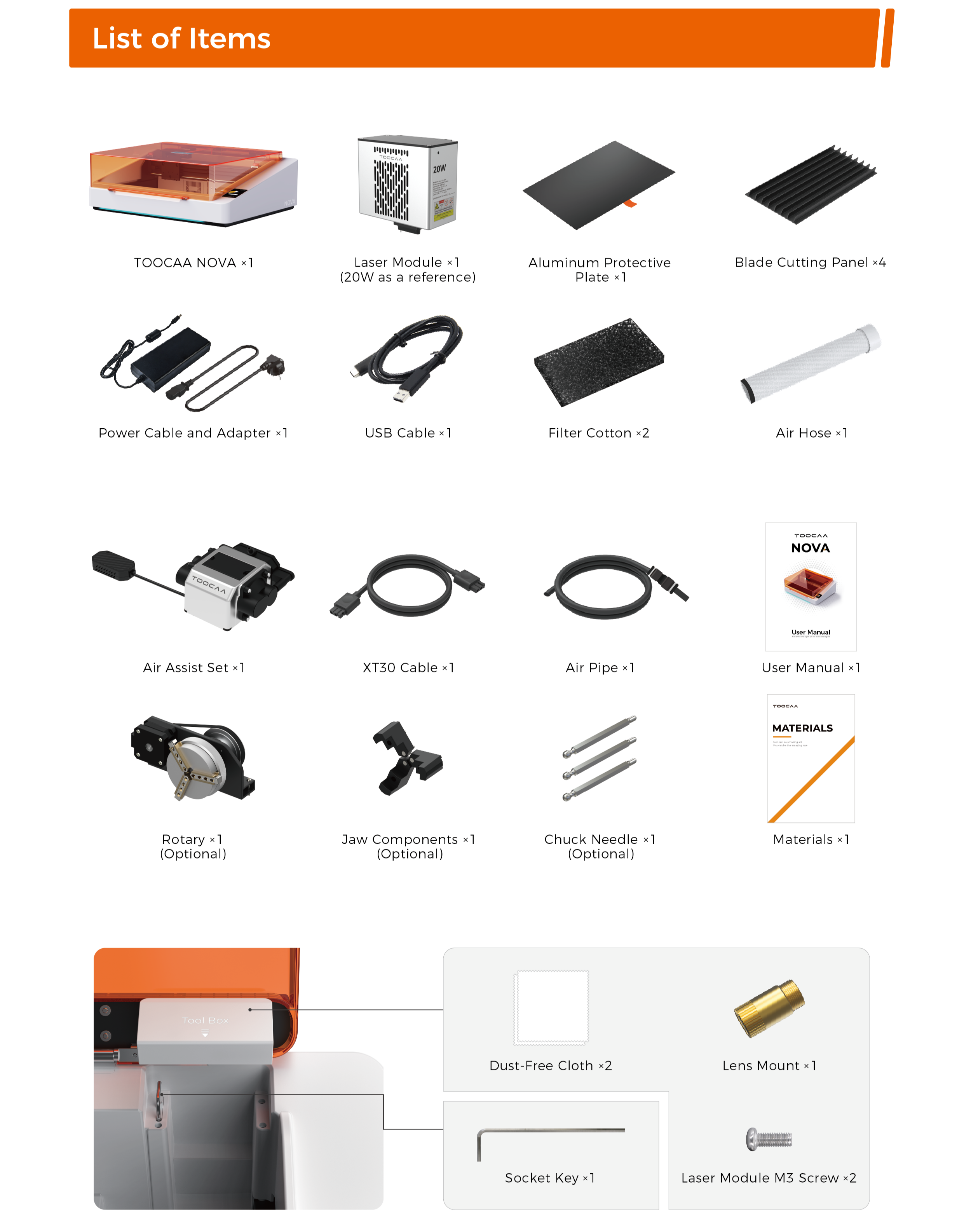
Packing List
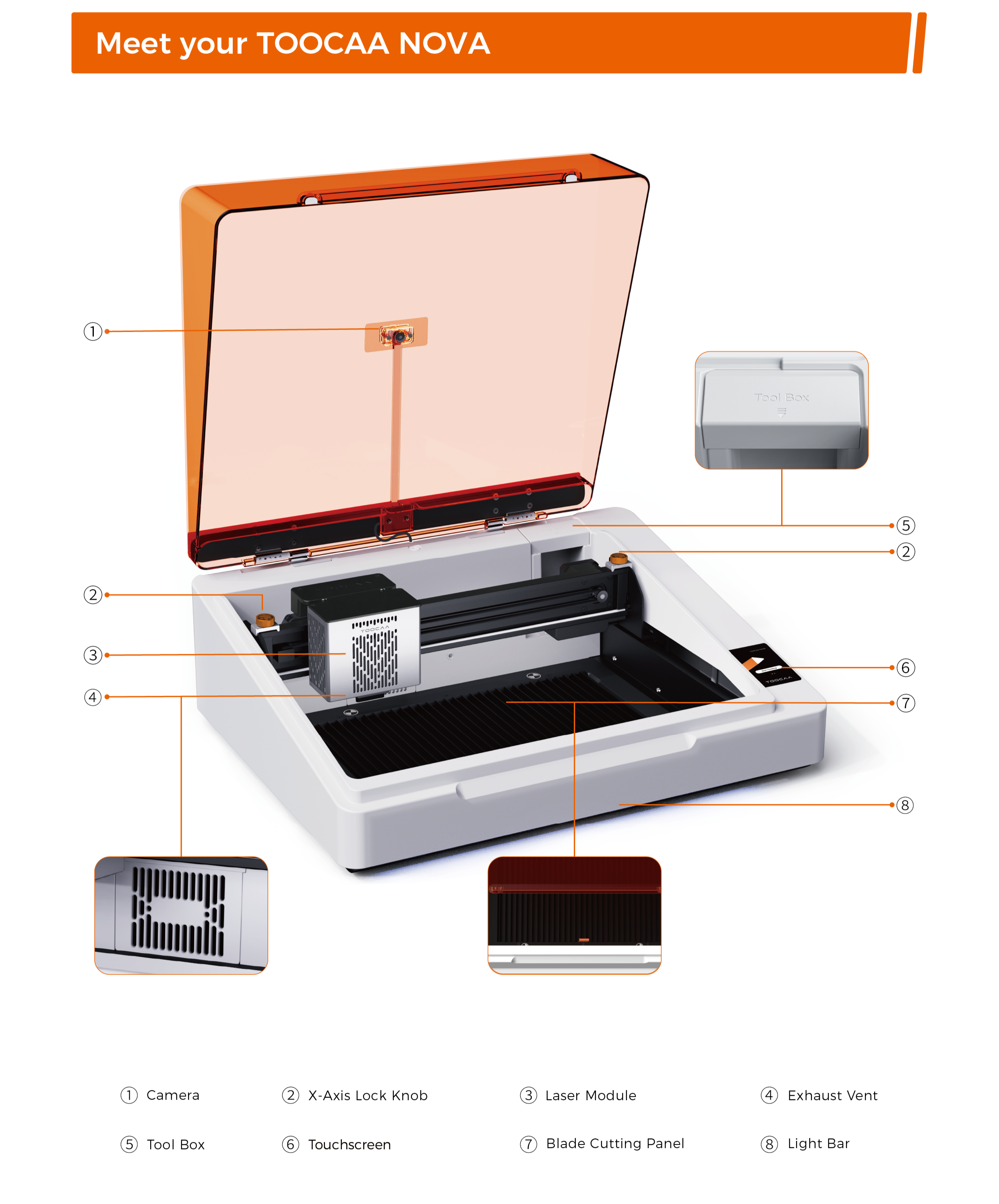
Product Design
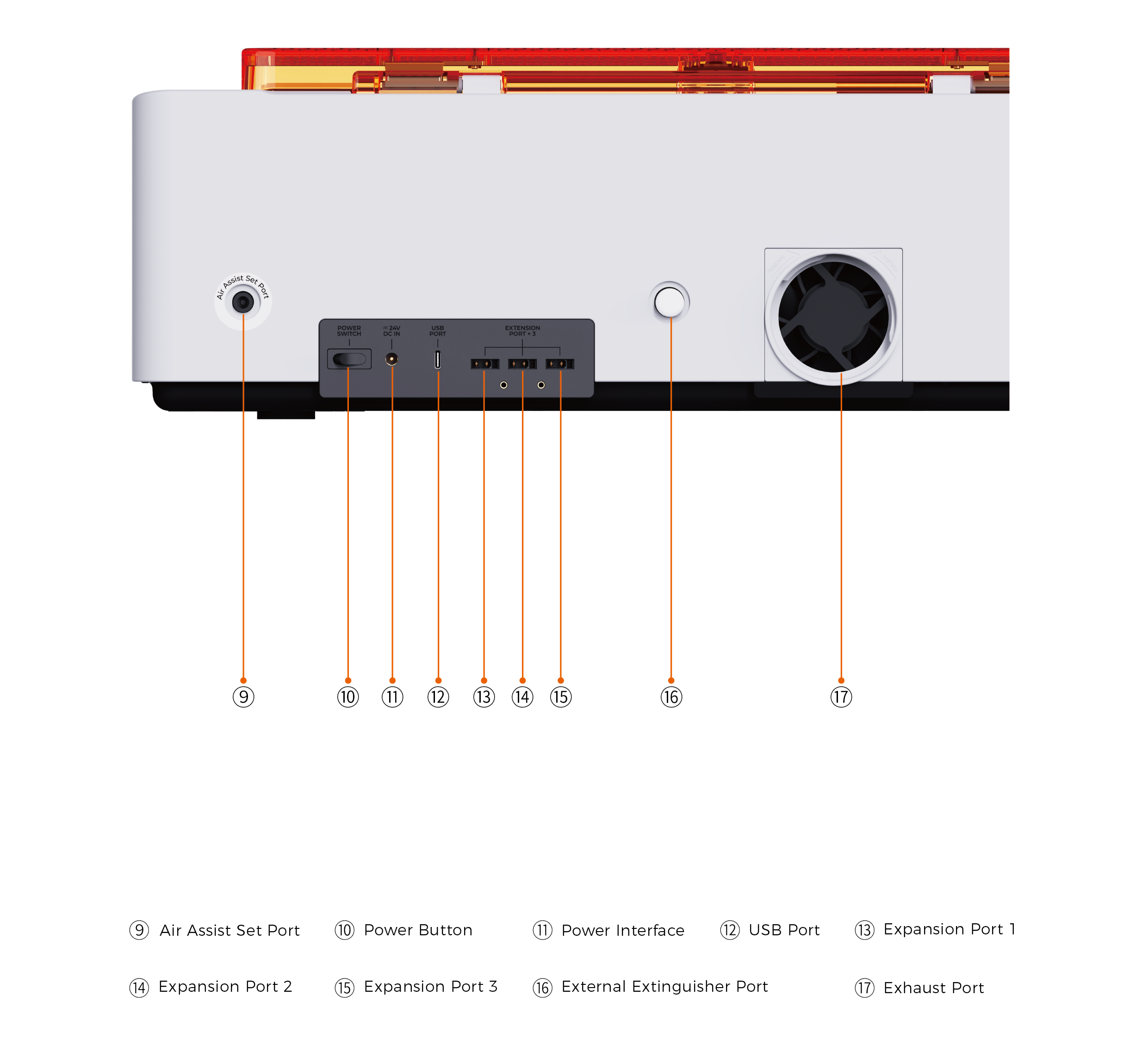
TOOCAA NOVA & TOOCAA Studio User Tutorial
Power on TOOCAA NOVA, then open TOOCAA Studio in Google Chrome (recommended).
👉 https://www.toocaastudio.com/Click Connect Device in the upper-right corner of the interface.

Select TOOCAA NOVA, then click Confirm.

Choose a connection method.

USB Connection
- Connect the USB cable (Type-C to Type-A) between NOVA and your computer.
- Click Connect in the device popup.

- Select the correct serial port from the browser prompt.
Wi-Fi Connection
Ensure NOVA and your computer are connected to the same Wi-Fi network and IP subnet.
- On the NOVA touchscreen, go to Settings → Wi-Fi.
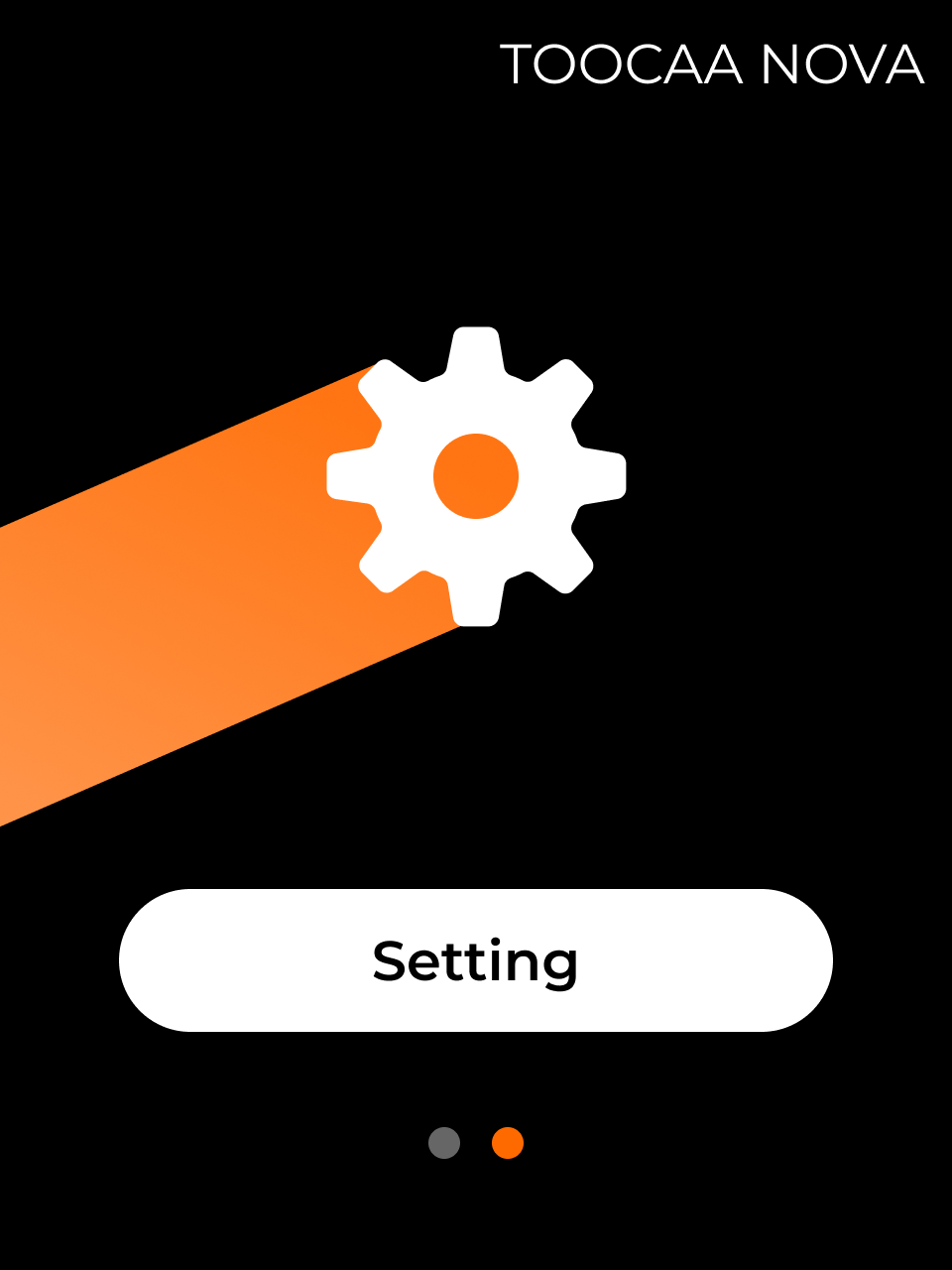
- Select a Wi-Fi network and enter the password.

- In TOOCAA Studio, choose Wi-Fi Connection → Connect New Device.

- Enter the NOVA IP address and click Connect.
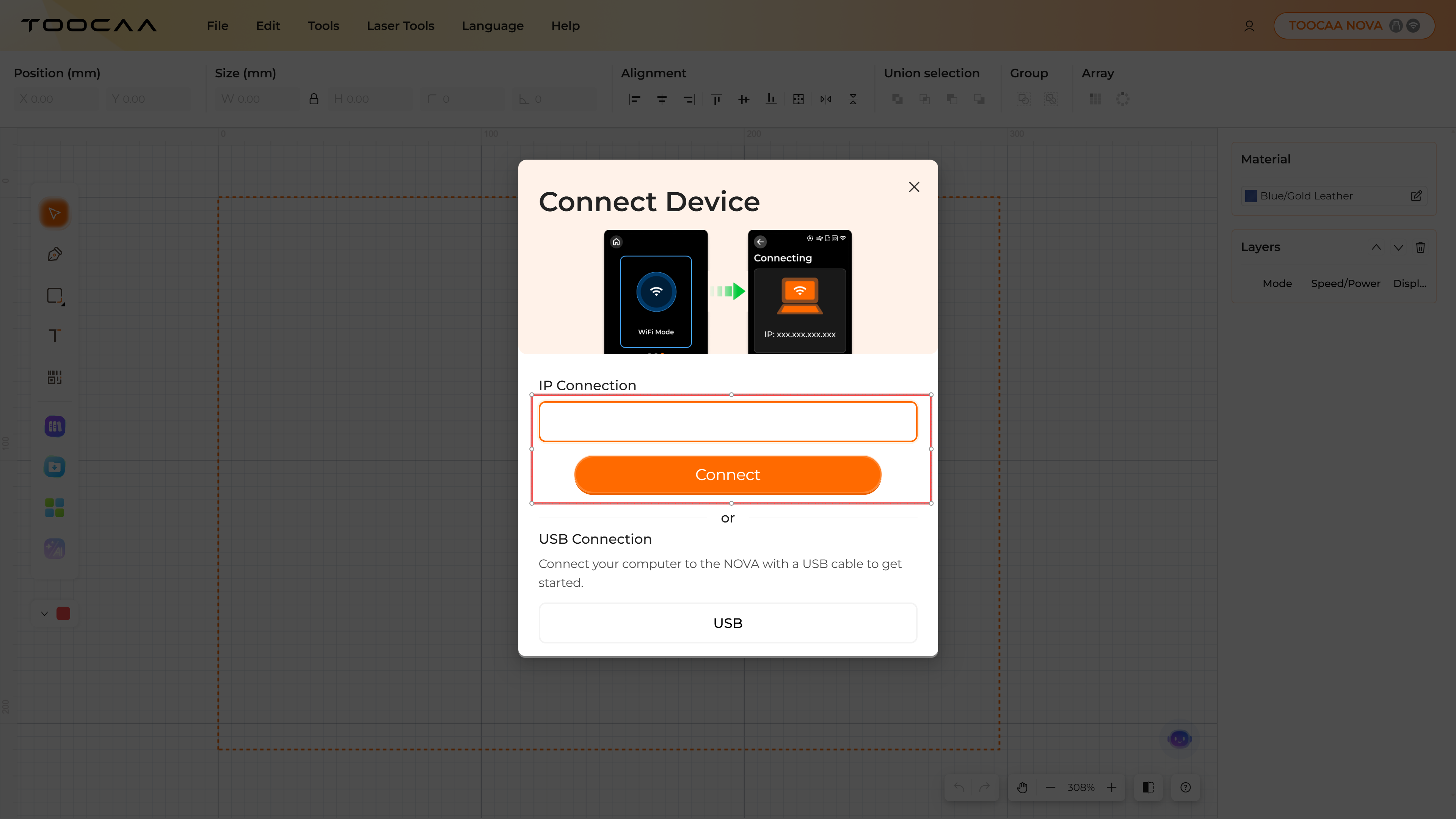
- Confirm the connection on the NOVA touchscreen.


.png)
Once completed, TOOCAA Studio will display all connected devices and the NOVA is ready to use.
TOOCAA Studio Creation Guide
- Save this TOOCAA Studio project file to your computer.
After successfully connecting the device following the steps above, Go to the File and click Open, and when the Clear Canvas notification pop-up appears, click Yes.
Lucky Koi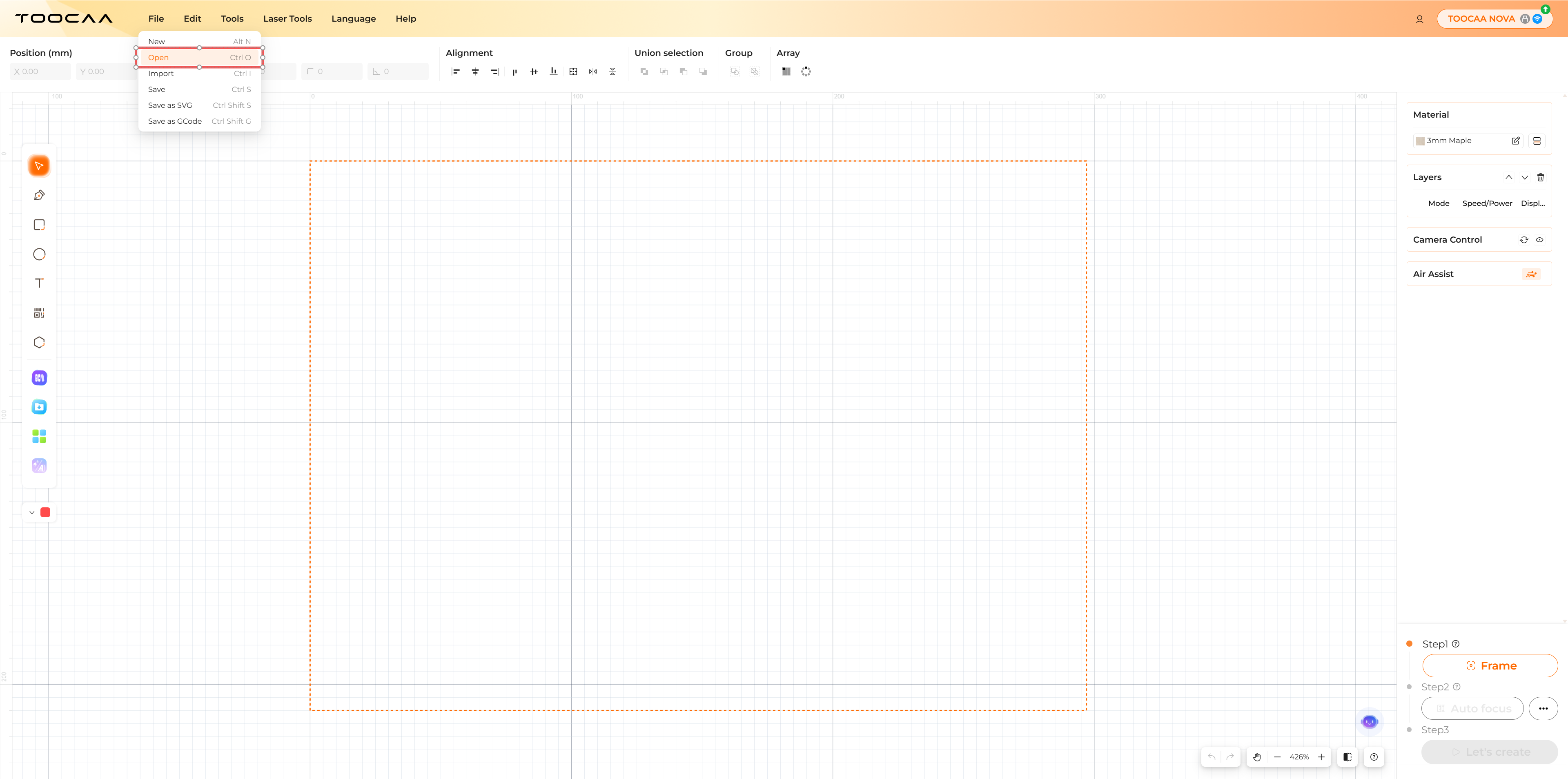
- Remove the basswood board and its corresponding 001 Basswood Material ID Card from the NOVA packaging.
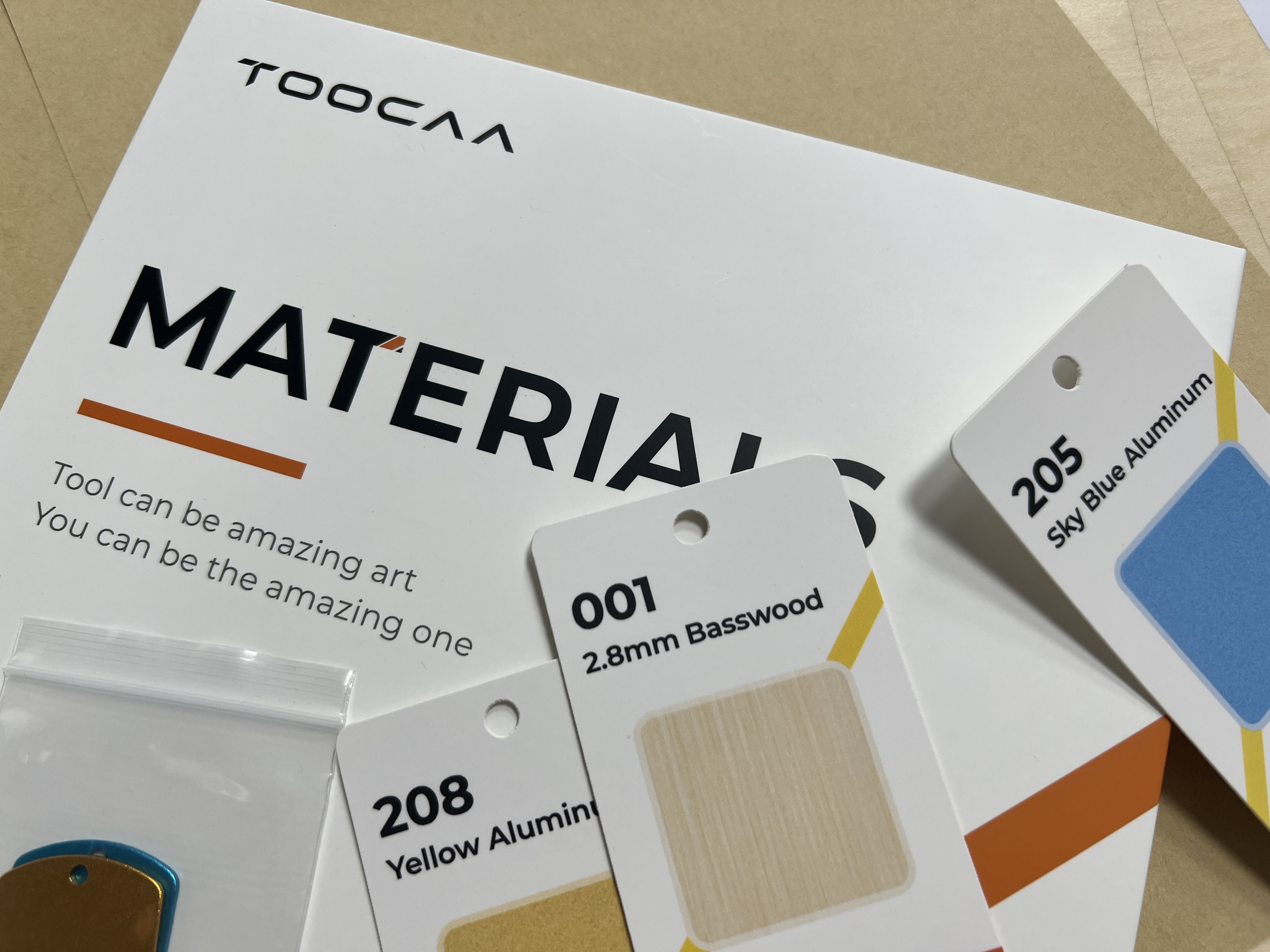
- Place the 001 2.8mm Basswood Material ID Card in the NOVA processing area and close the cover.
The QR code recognition function will activate automatically, and after a short moment, a QR Code Recognition Result pop-up will appear.

- After clicking OK, the material information on the right will automatically update to reflect the current material.

- At this point, the recommended parameters will also update automatically.
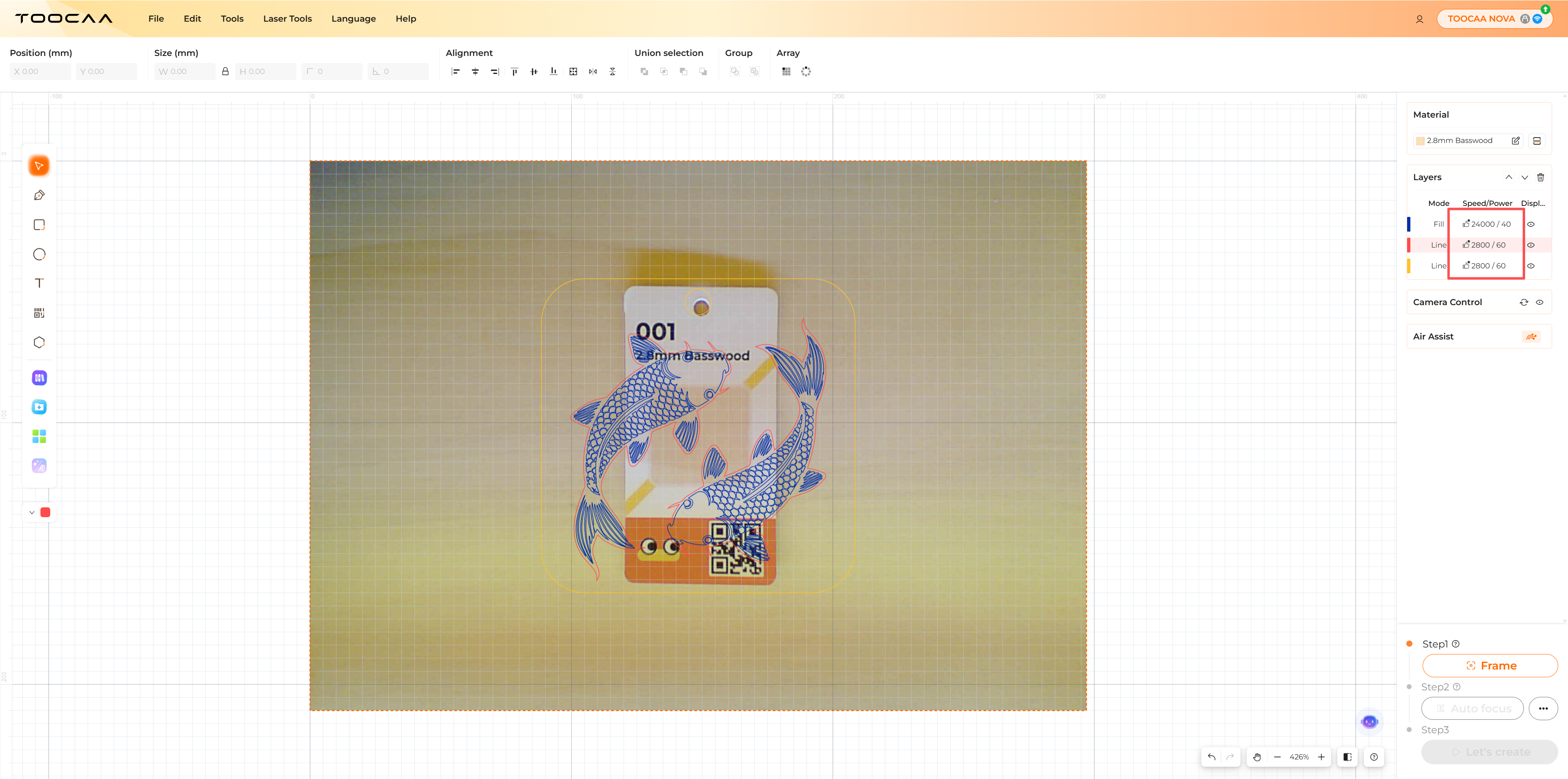
Tips: If all icons on the left of the processing parameters show a thumbs-up, the current parameters are already optimal for the material. If a red Update icon appears, it indicates that the current parameters are customized. The user can choose to update to the recommended parameters or keep the custom settings for processing.
- Remove the 001 2.8mm Basswood Material ID Card from the processing area and close the cover.After closing the cover, click Frame.(The purpose of Frame is to confirm the processing position.)
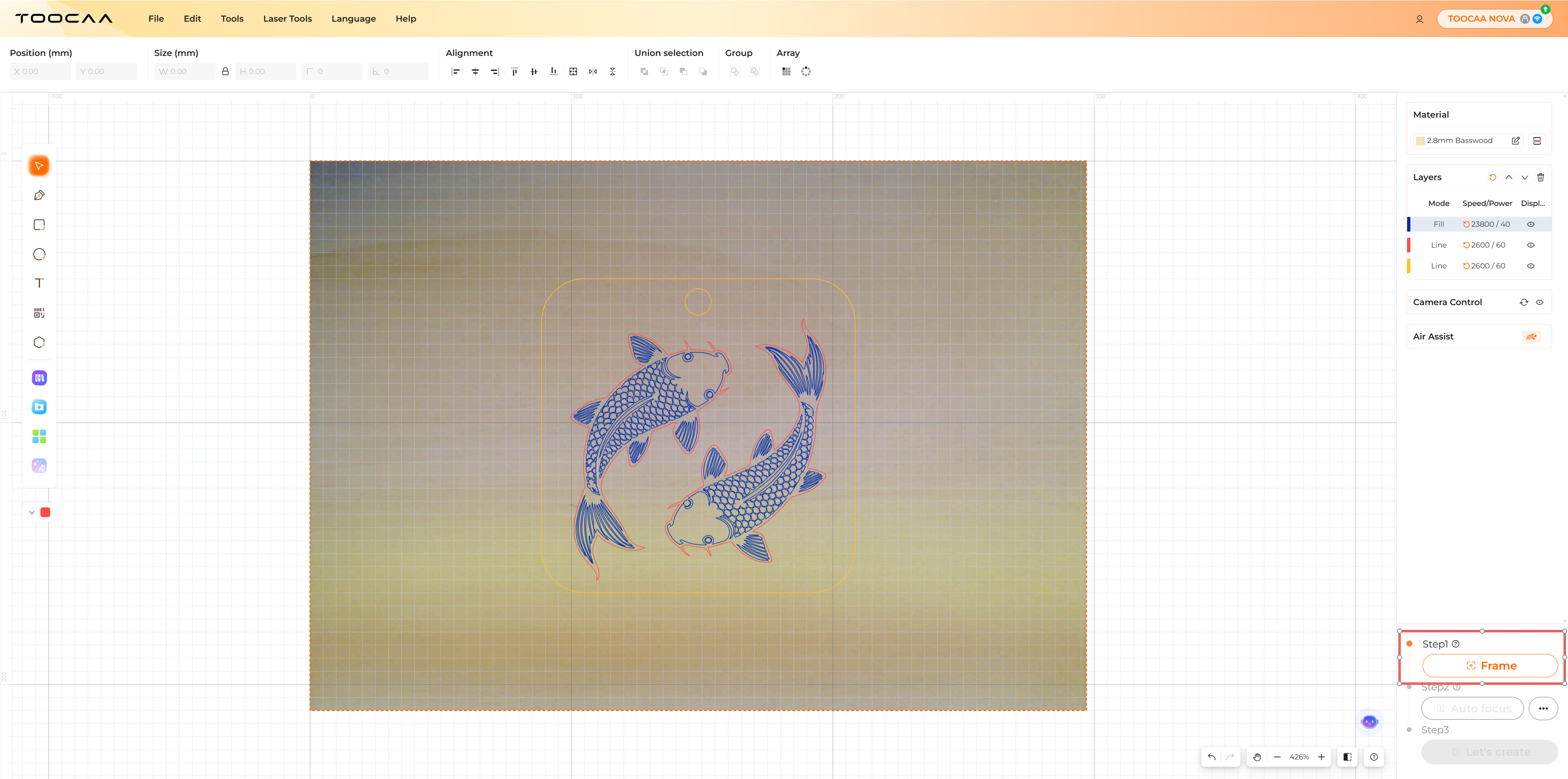
Do not open the cover while the laser is tracing the frame.If you need to open the cover, wait until the laser head has finished tracing the frame and returned to its home position.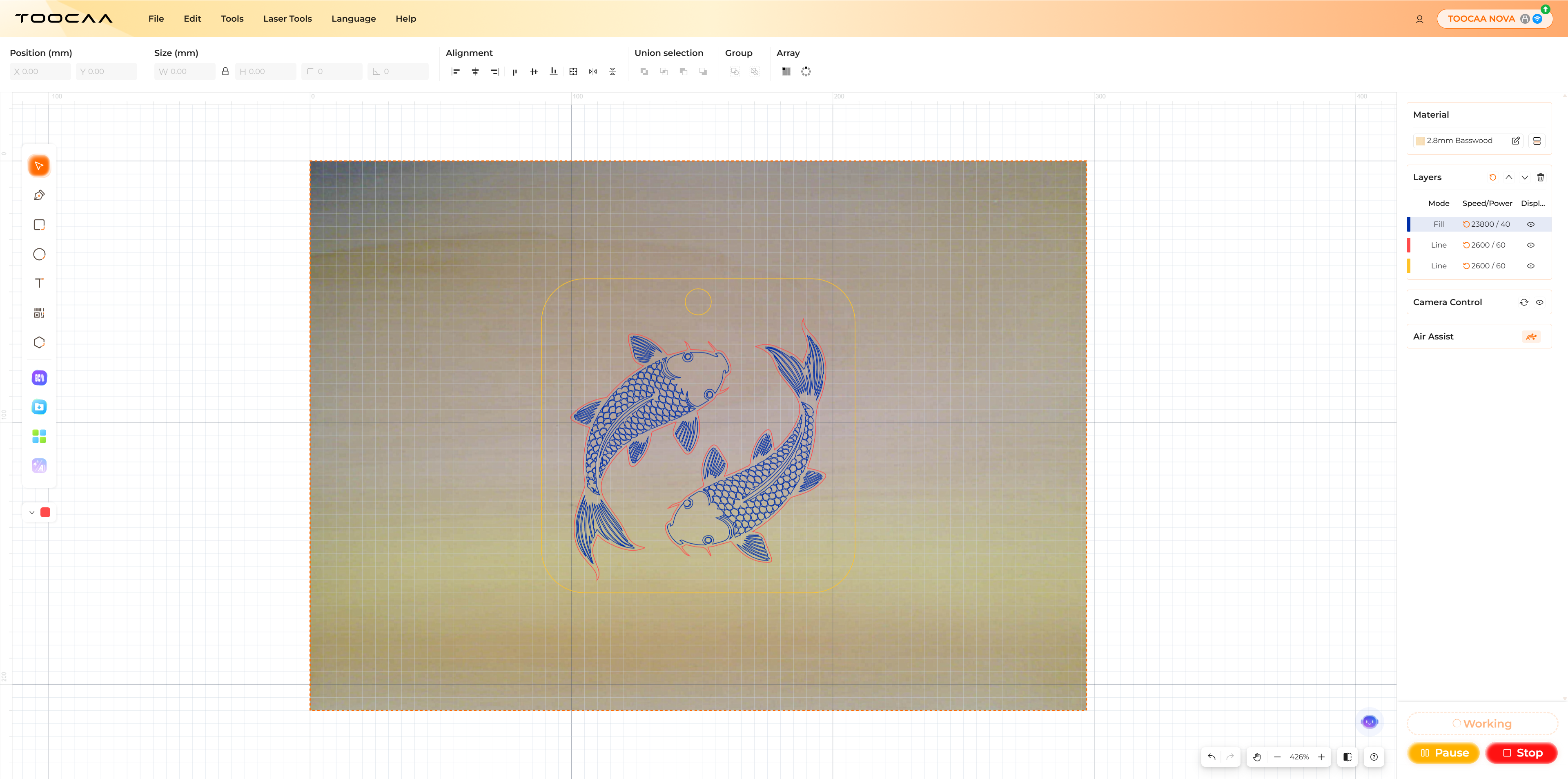
- After confirming that the processing area is correct, click Auto Focus.

Tips: For harder materials, simply use **Auto Focus**.For softer materials or materials unsuitable for automatic focusing, click **Advanced Focus** next to Auto Focus to manually adjust the laser head height, or manually focus by entering the material thickness.
- Once focusing is complete, click Start Processing.

- After clicking Let's create, you can modify the file name in the Processing Preview pop-up.
Tips: Files created and processed in TOOCAA Studio are saved locally on the TOOCAA NOVA. They can be reused later through the NOVA’s local file mode.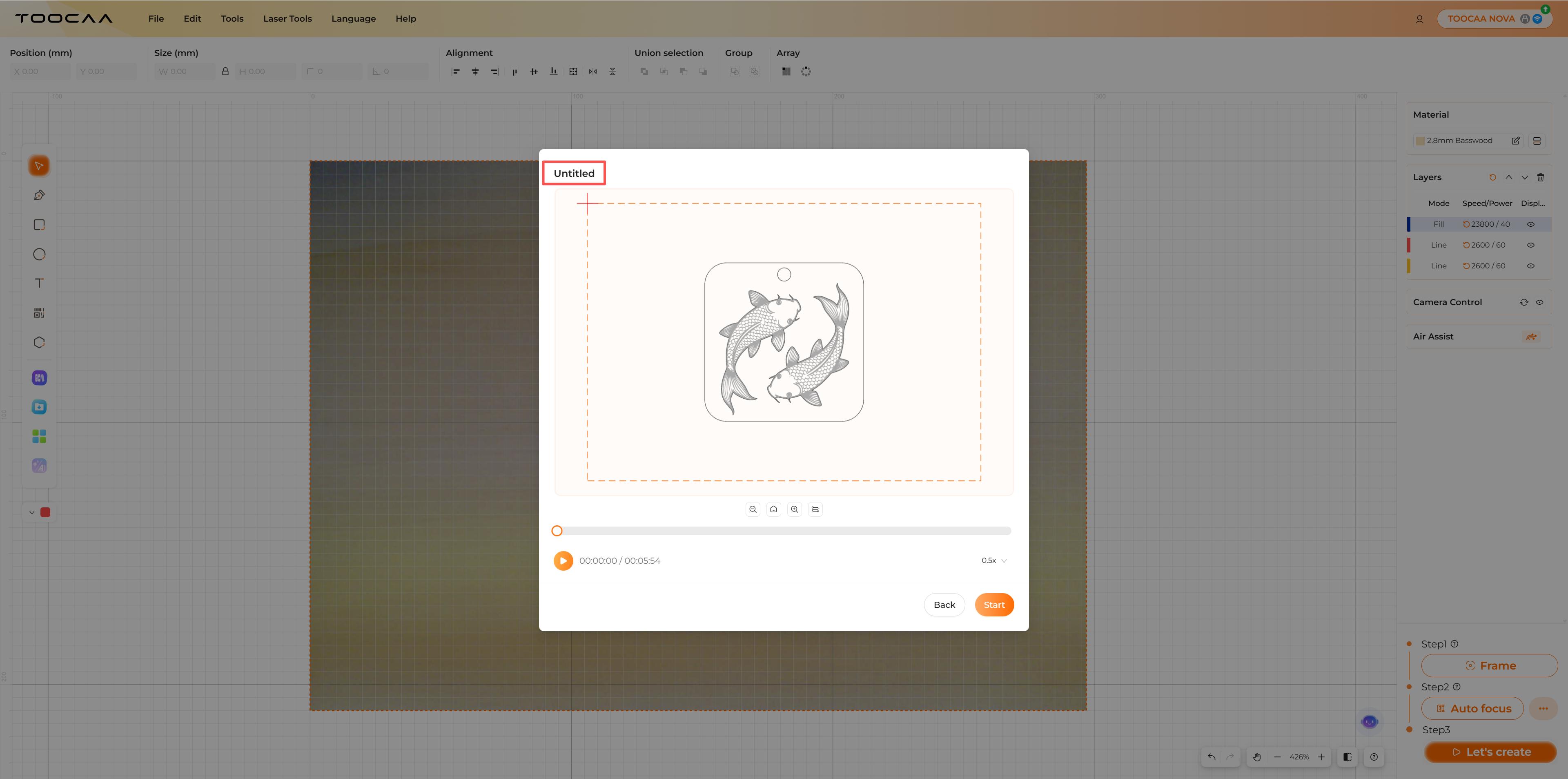
- After renaming the file, click Start to begin processing.
Tips: You can pause and resume freely during processing; however, clicking Stop will halt the current job and return to the home screen, requiring you to start processing again.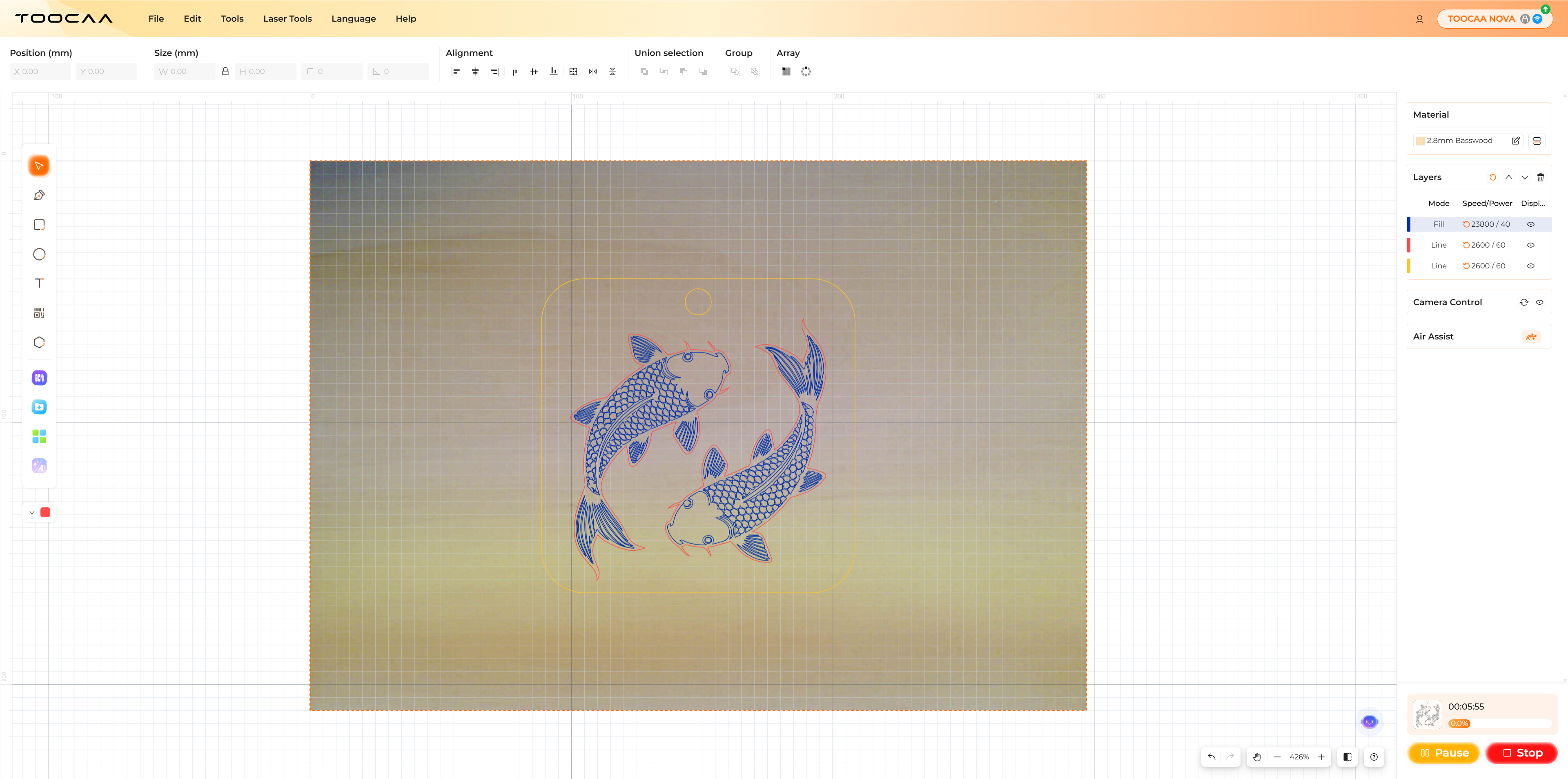
Once the processing is complete, your very first creation is finished!
Enjoy your creative journey ahead!
TOOCAA NOVA Creation Guide
- Select Offline Mode.

- Select the Lucky Koi! file.

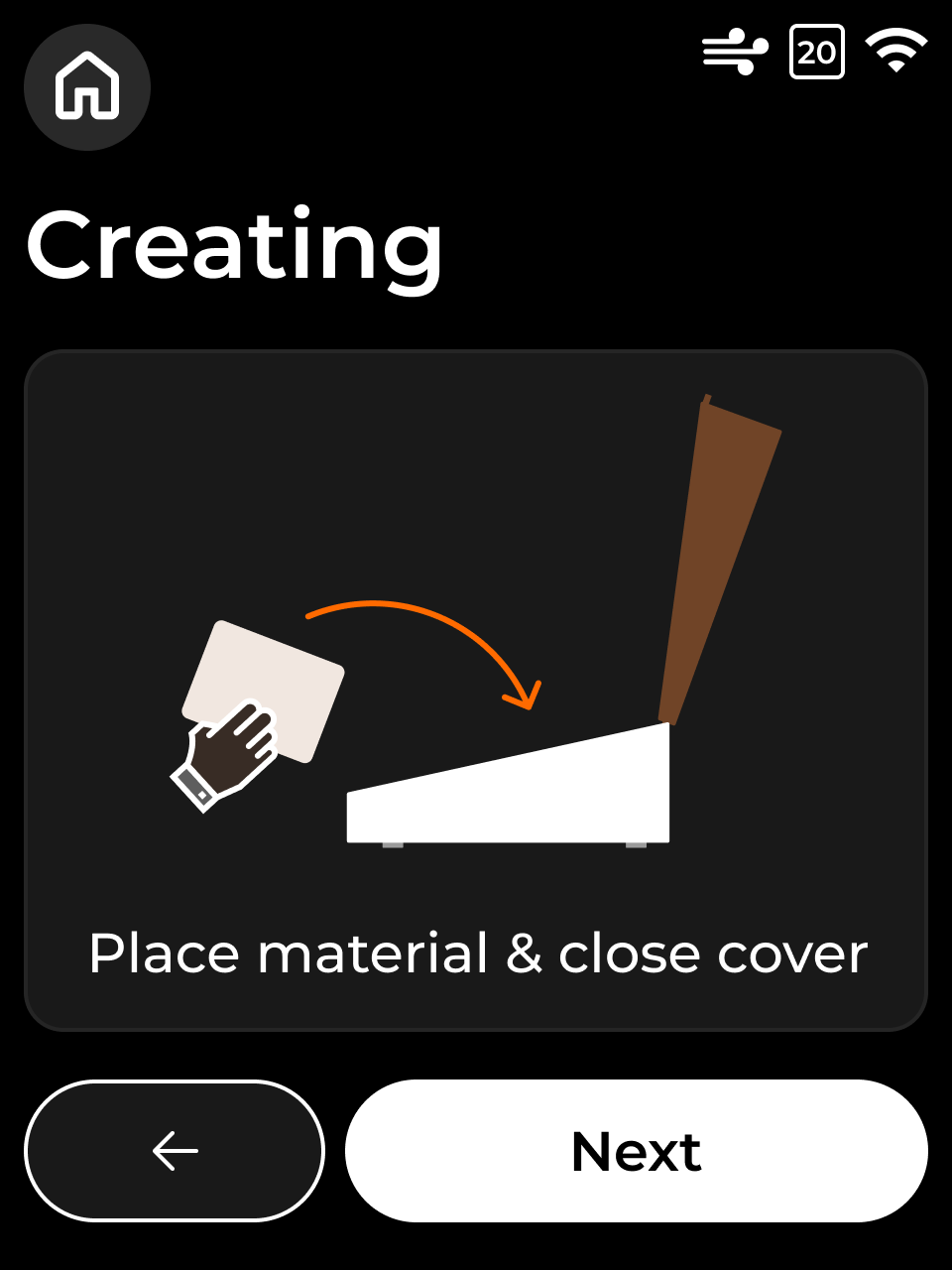
- Place the 3 mm basswood board properly in the processing area, close the cover, and then clic Next
- Click Frame.(Do not open the cover while framing.)
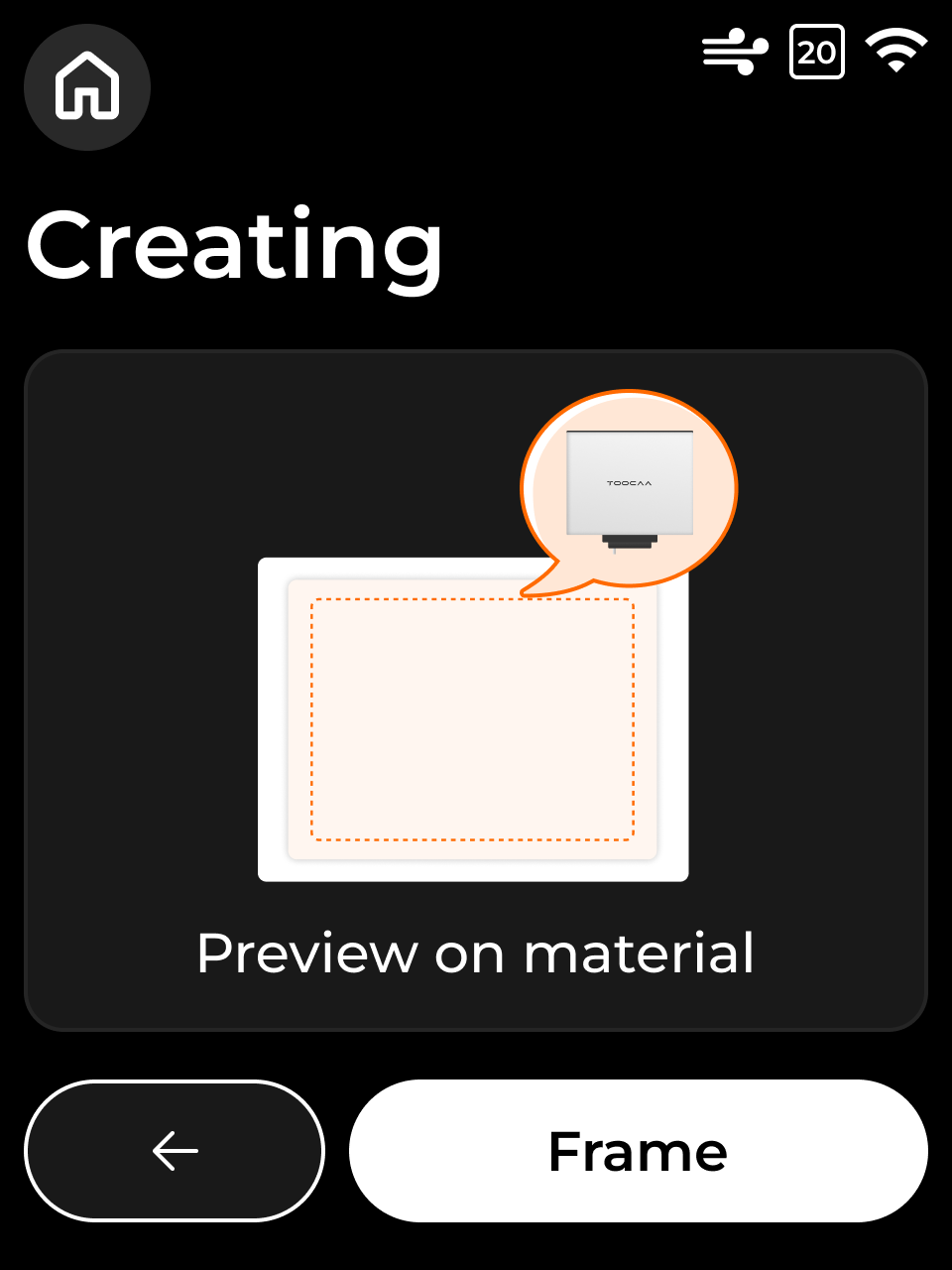

- Next After framing is complete, click Next.

- Click Auto Focus.(Do not open the cover during focusing.)


7.Once focusing is complete, ensure the cover is closed and click **Next**.
8.Review the processing content and estimated processing time. Once confirmed, press the green Start button to begin. Tips: You can pause and resume freely during processing; however, clicking Stop will halt the current job and return to the home screen, requiring you to start processing again.
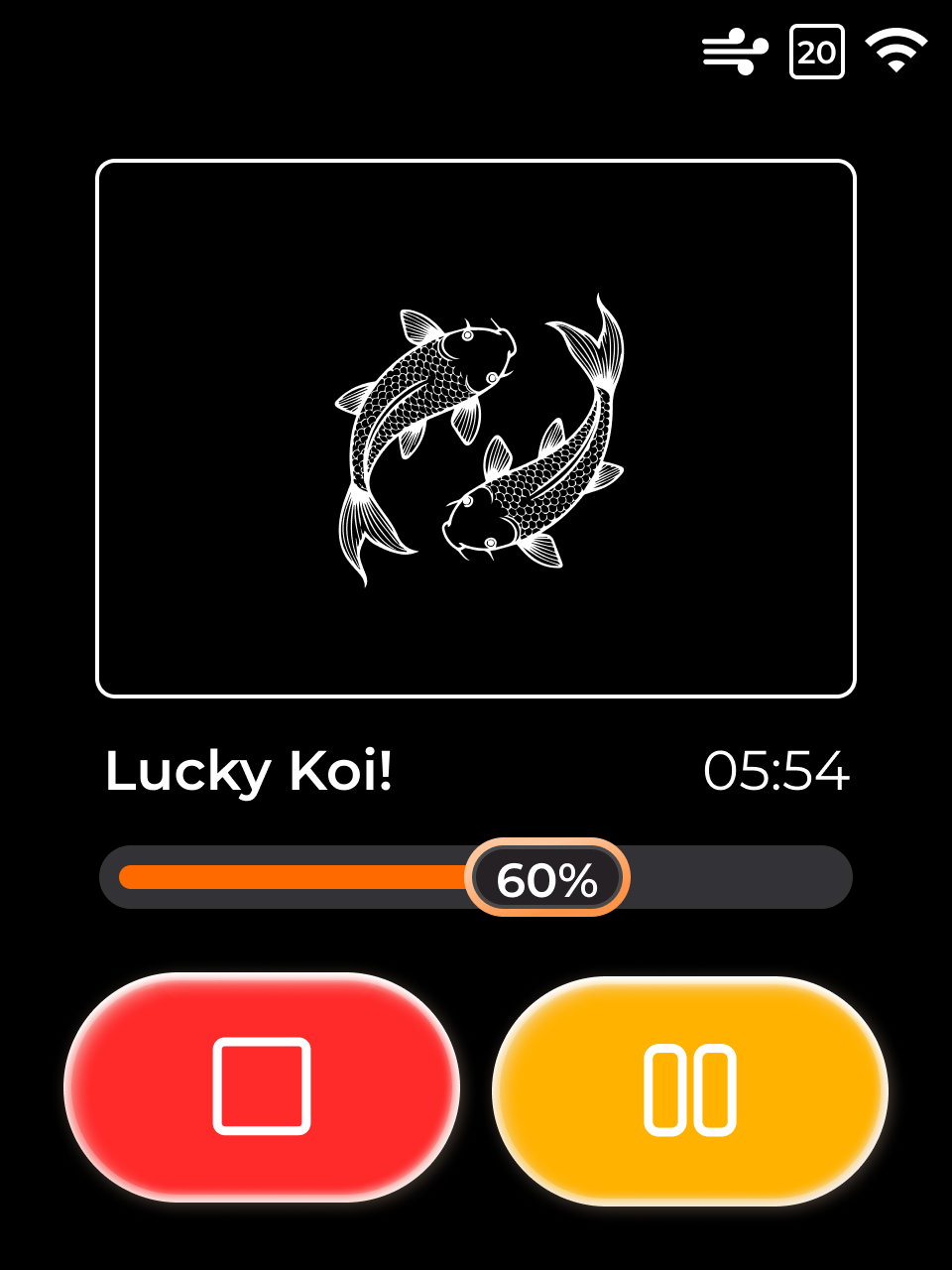
- Once processing is complete, your first creation is finished.
Begin your creative journey and enjoy exploring your ideas!