¶ TOOCAA NOVA & TOOCAA Studio Camera Calibration Guide
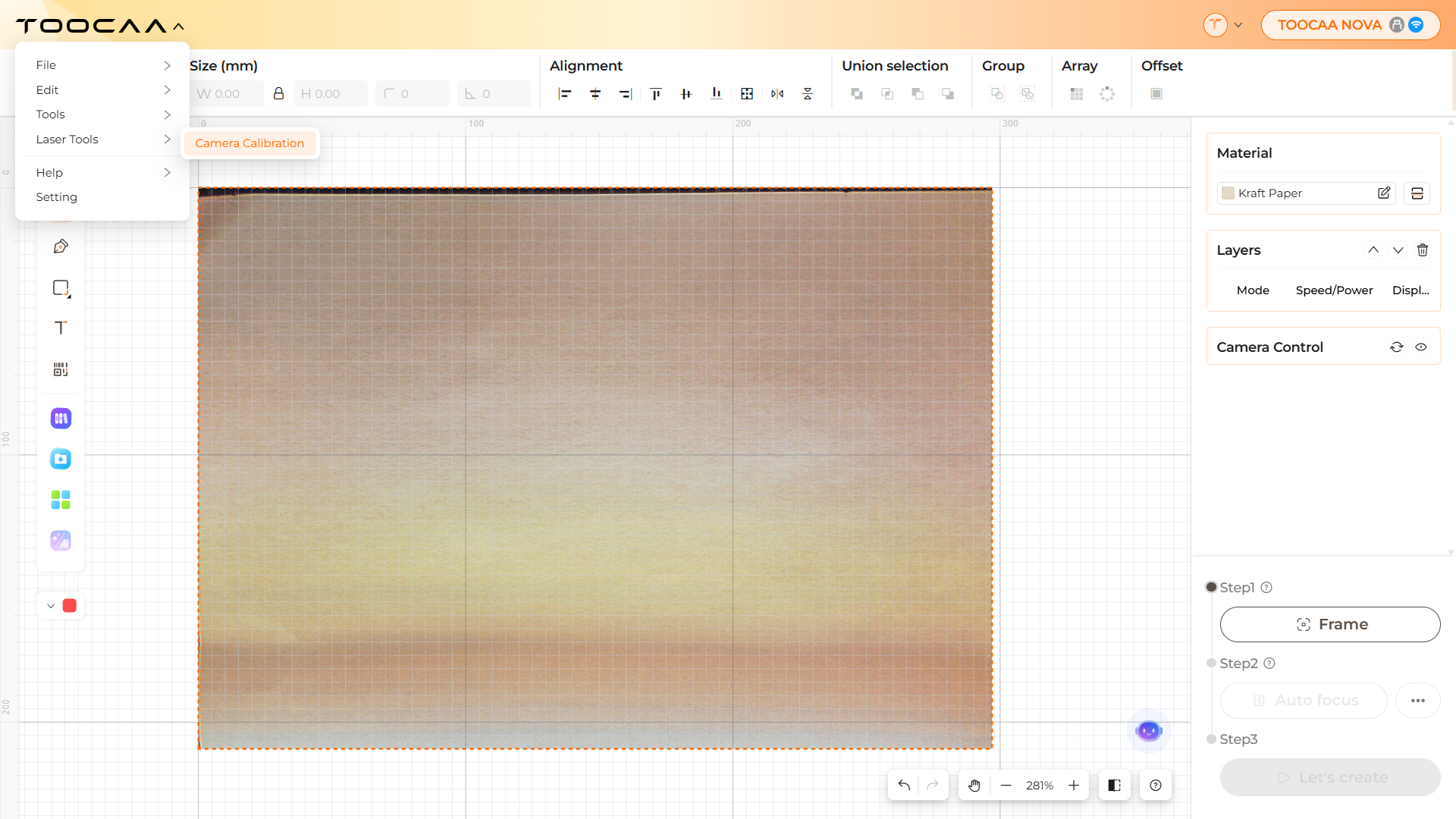
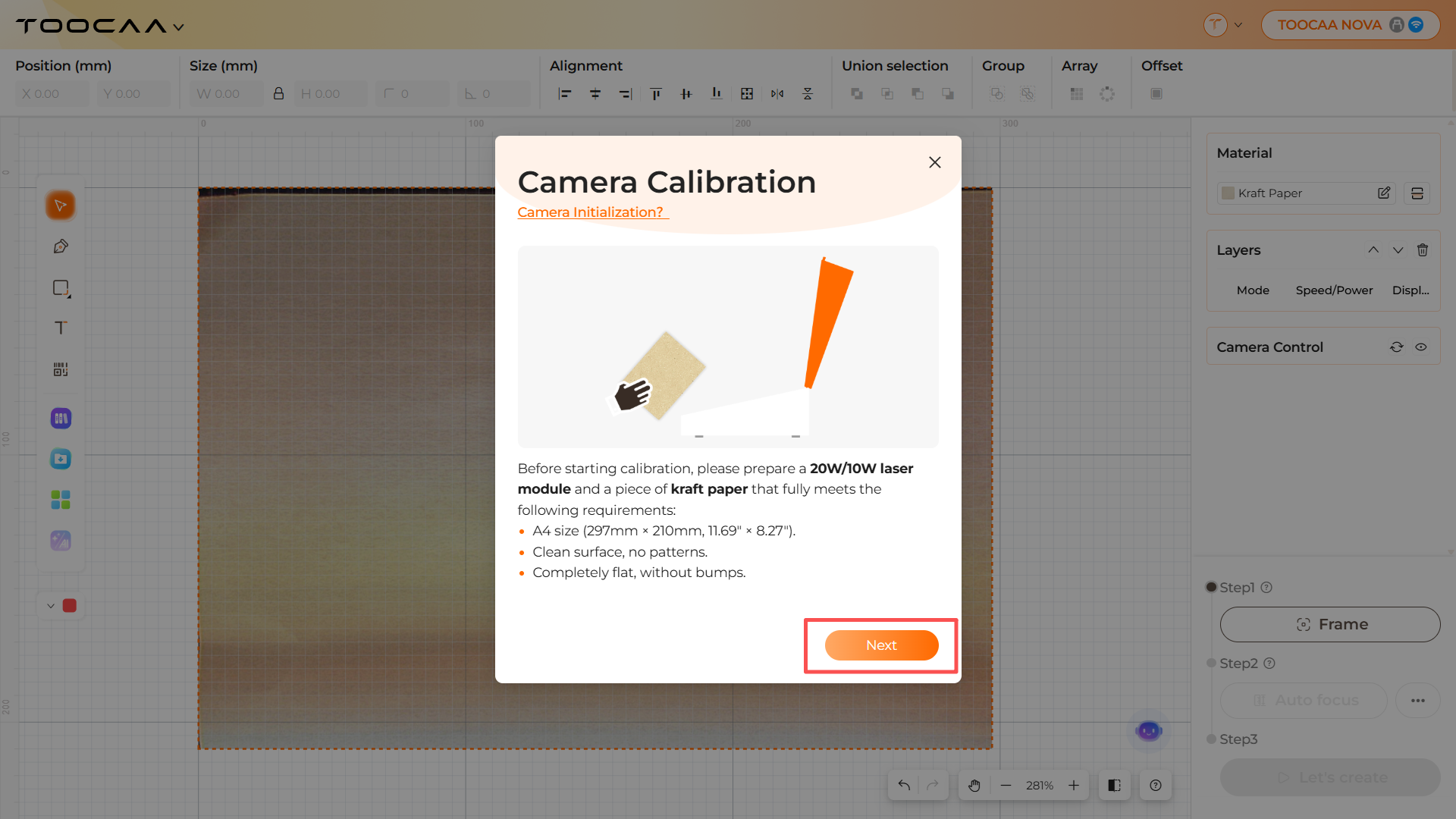
This guide explains how to calibrate the camera on TOOCAA NOVA using TOOCAA Studio. After calibration, the camera preview in the software will align more accurately with the actual working area of the machine, making it easier to position designs and create projects.
Tips: Only place one sheet of kraft paper in the working area during calibration. Do not place any additional materials or objects inside the machine, as this may affect the calibration result.
Please ensure the kraft paper surface is clean and free of texture. It should be completely flat and without any bumps.
After successfully connecting TOOCAA NOVA to TOOCAA Studio, update the overlay first and make sure there are no noticeably bright or overexposed areas on the paper in the software view.
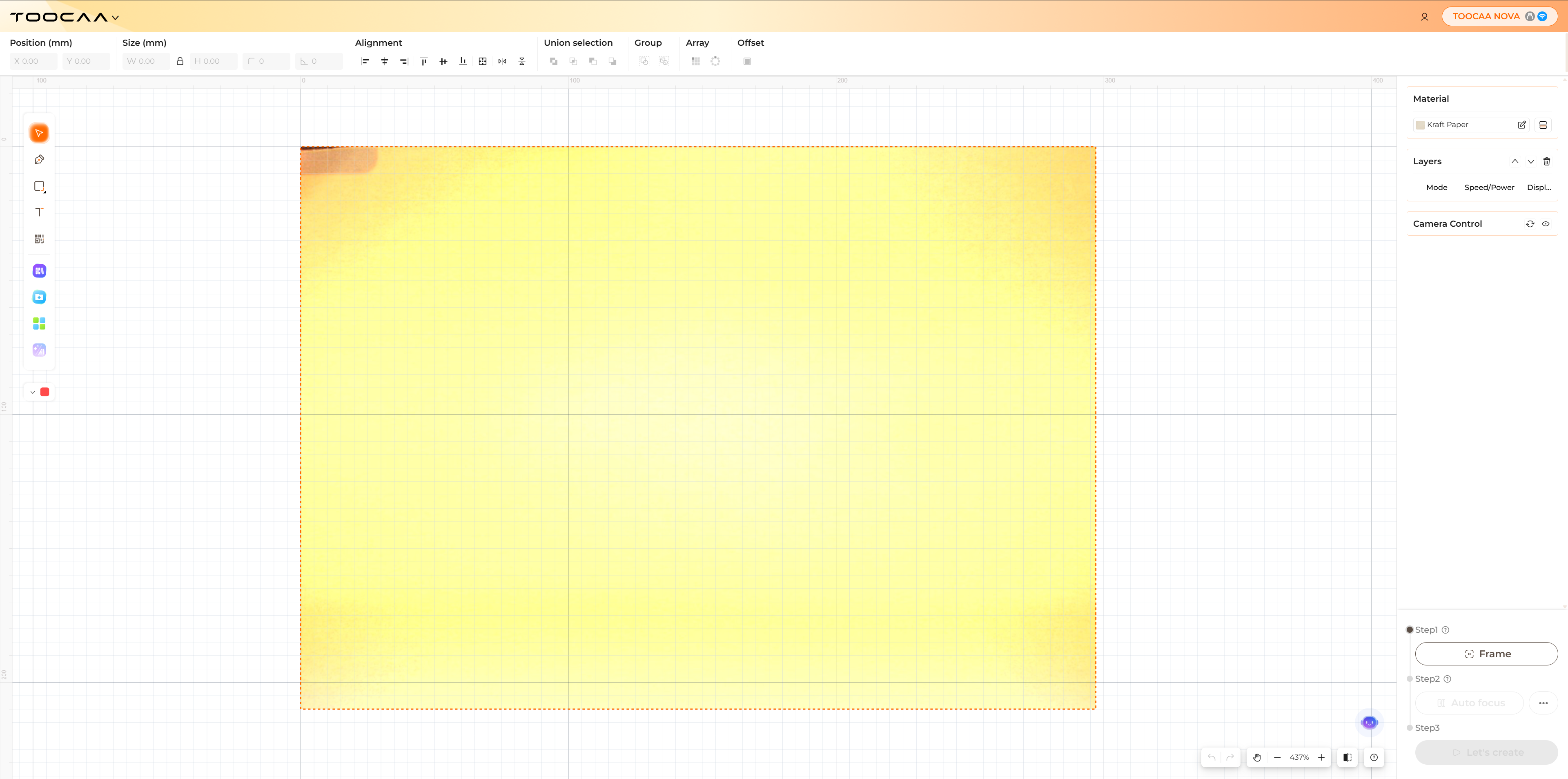
The image below shows an overexposed preview caused by excessive ambient light. If obvious overexposed areas also appear in the TOOCAA Studio overlay, check whether there is a strong direct light source around the machine that is causing uneven brightness in the camera view. Turning off or adjusting the light source can help provide a more accurate preview and a better user experience.
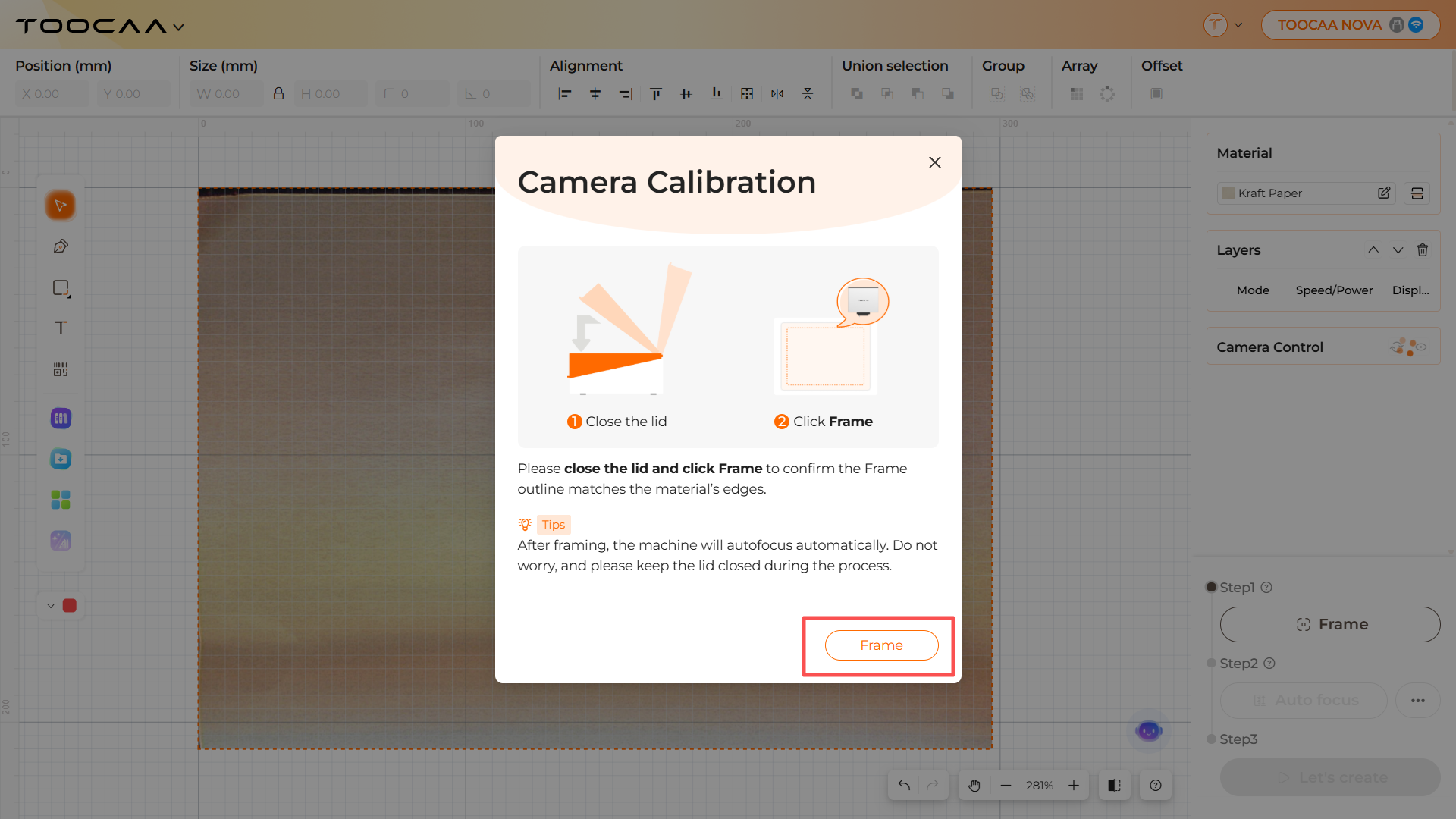
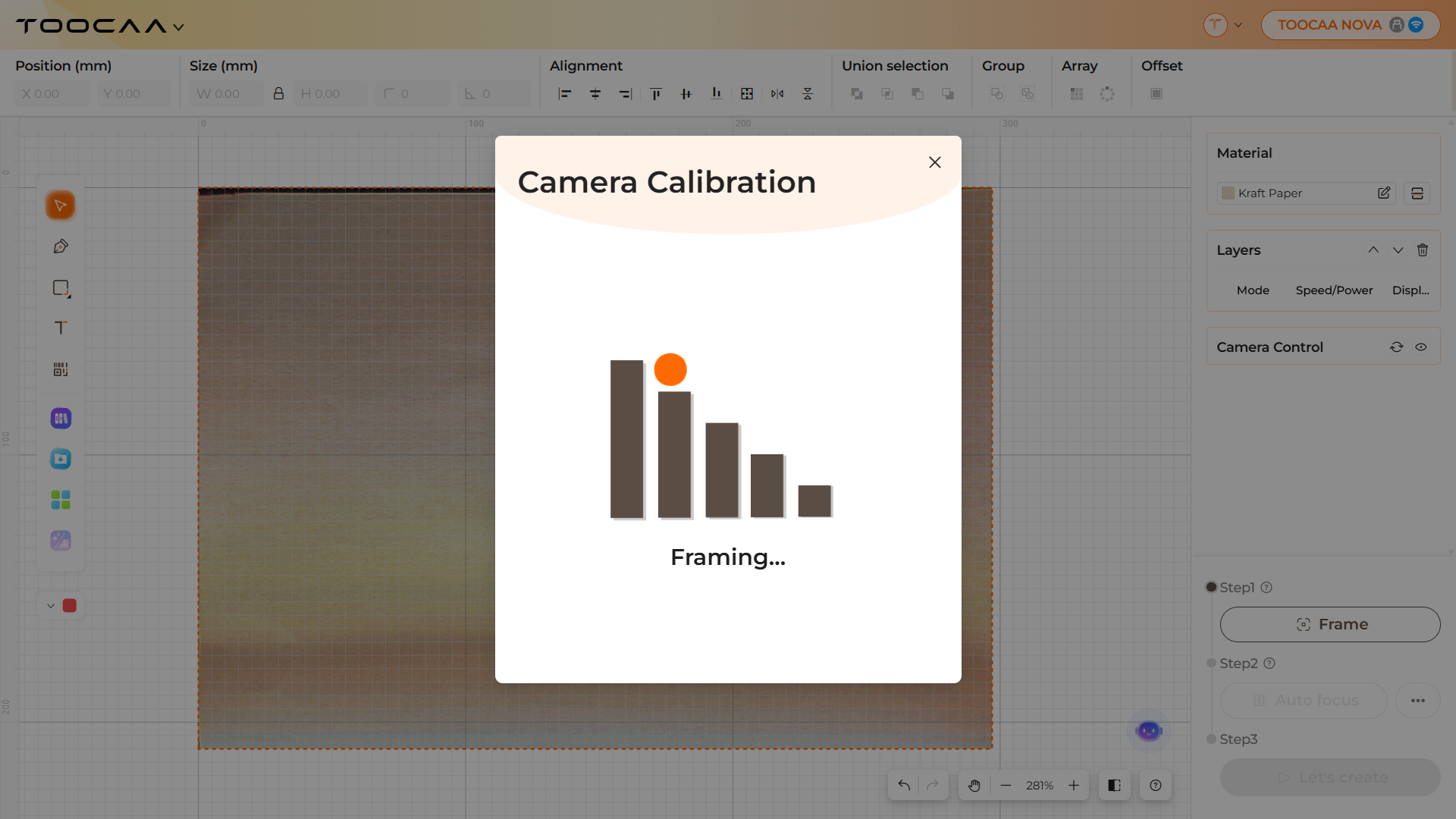
During the framing process, the machine will perform framing preview and auto focus in sequence. Make sure the entire framing area is fully covered by the kraft paper and does not extend beyond the paper.
Important: Keep the lid closed during framing and auto focus. Opening the lid may interrupt the process or affect calibration accuracy.
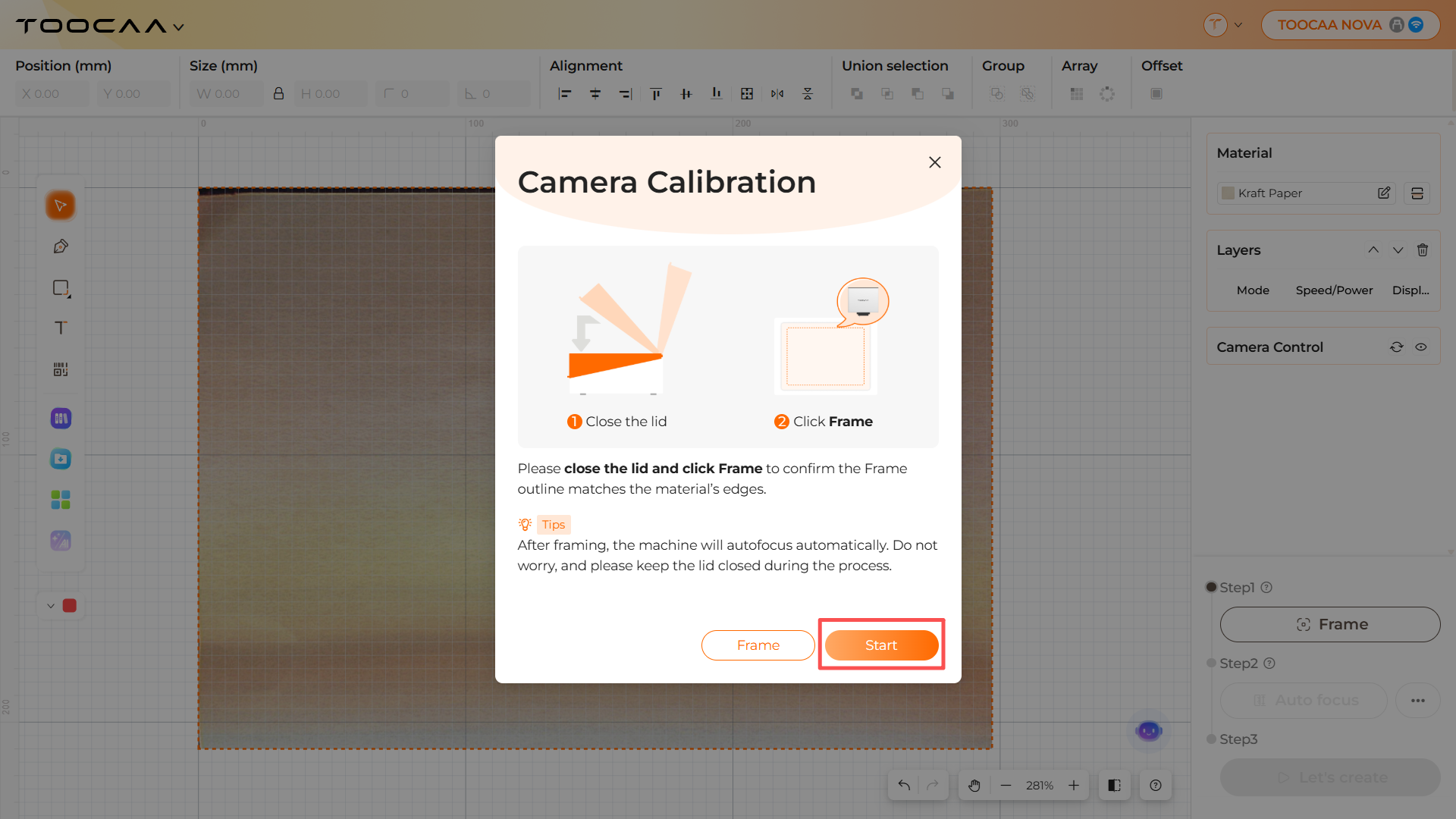
After framing and auto focus are complete, click Start. The machine will begin engraving the calibration pattern on the kraft paper.
Once the calibration pattern has been engraved, TOOCAA Studio will automatically calibrate the camera based on the pattern position.
Keep the lid closed and do not move the kraft paper during calibration. It is recommended to turn on air assist to reduce smoke and dust, which may affect recognition of the calibration pattern.
Once camera calibration is complete, you can start creating projects as usual. When using the camera preview in TOOCAA Studio, the image displayed in the software will be aligned with the actual working area of the machine.
After camera calibration is completed, TOOCAA NOVA will automatically adjust the camera view based on the material thickness after auto focus. In most cases, repeated calibration is not required.
If the camera preview becomes noticeably misaligned, the machine is moved, camera-related components are replaced, or positioning accuracy decreases after long-term use, it is recommended to run camera calibration again.
If a noticeable positioning offset remains after completing camera calibration, please contact TOOCAA Support at support@toocaa.com.